DATASCI 350 - Data Science Computing

Lecture 23 - Dependency Management, Virtual Environments, and Containers

Danilo Freire

Department of Data and Decision Sciences
Emory University

Hello again! 😊

Brief recap 📚

Scaling up an analysis

  • We set up a Dask cluster and watched work flow through the dashboard
  • We met the “single-machine renaissance”
    • Columnar memory, vectorised kernels, all cores by default
  • Polars: expressions, lazy mode, streaming, and pandas interop
  • DuckDB: SQL over files, out-of-core, results back into pandas or Polars
  • Our little benchmark: Polars and DuckDB finished in under a second, way ahead of pandas and Dask
  • Pandas for small data, Polars or DuckDB when it grows, Dask when it leaves one machine
  • Now that your pipeline works, let’s make it run anywhere! 🤓
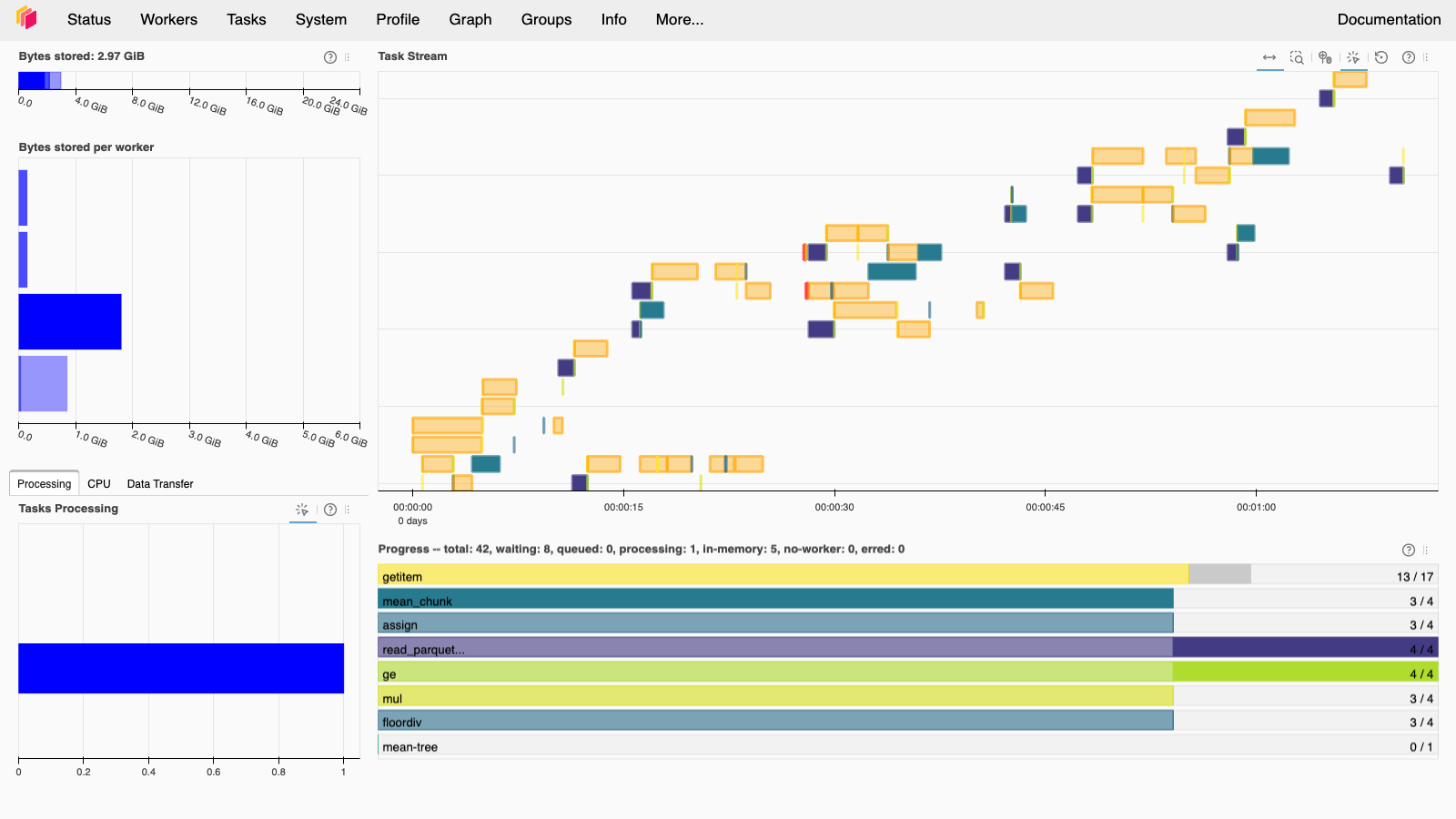
The Dask dashboard during the 200-million-row benchmark

Today’s agenda

Lecture overview

Will your code run anywhere else?

1. Dependency management

  • Why working code breaks
  • How to write down what your code needs

2. Virtual environments

  • venv and pip, and the requirements.txt every Dockerfile reads
  • conda for software that is not Python, uv for speed

3. Containers

  • What Docker is, and how an image differs from a container
  • Docker Desktop, its licence, and the free alternatives

4. Your first image

Dependency management 📦

Congratulations! 🎉

You have a project 🥳

  • Your code works, it is fast thanks to Polars and DuckDB, the report renders, the repository is documented
  • One question remains: will it run anywhere else?
  • What happens when you move it to a new machine, hand it to a colleague, or open it again in six months?
  • Everything so far assumed one thing you never wrote down: the software installed on your laptop
  • Dependency management makes that assumption explicit
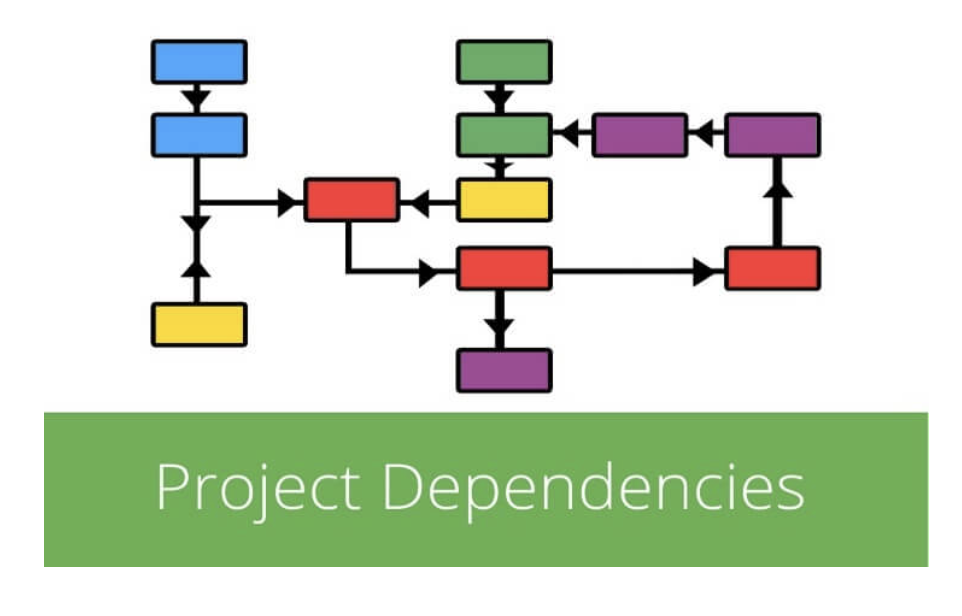
Why do we need dependency management?

The problem

  • Libraries change constantly!
  • Even very simple code breaks when software updates
  • From Python 2.x to 3.x:
    • -c means “run this command”
python2 -c 'print "Hello, DATASCI350!"'
Hello, DATASCI350!

python3 -c 'print "Hello, DATASCI350!"'

  File "<string>", line 1
    print "Hello, DATASCI350!"
    ^^^^^^^^^^^^^^^^^^^^^^^^^^
SyntaxError: Missing parentheses in call to
'print'. Did you mean print(...)?

Some definitions

  • Dependency management: making sure your code will run in the future
  • Dependencies: external libraries, packages, and software your code needs
  • Packages: have a name, a version, and possibly their own dependencies
  • Package registry: a directory that stores packages and metadata, e.g., CRAN, PyPI, Conda
  • Dependency management tools: pip, conda, and others install and track those packages
  • Every tool in this lecture exists to write that list down and replay it somewhere else

The reproducibility crisis

  • Reproducibility crisis: many researchers cannot replicate published results
  • It affects computer science, statistics, psychology, and medicine alike
  • Some causes are statistical: p-hacking, publication bias, low power
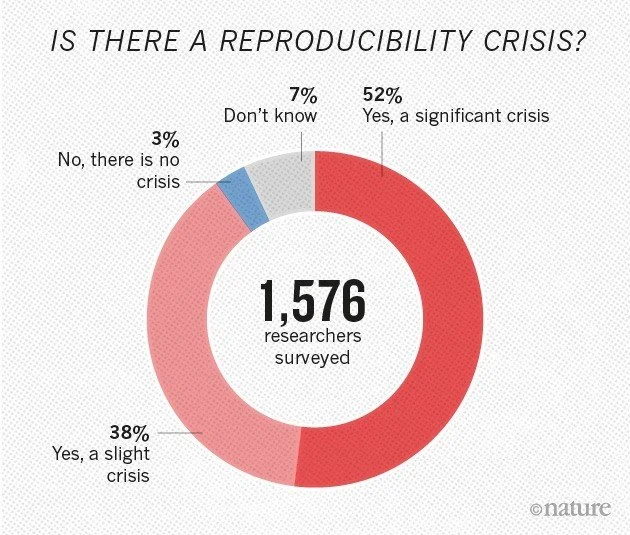
  • A 2016 Nature survey asked 1,576 researchers:
    • More than 70% had failed to reproduce another scientist’s experiment
    • More than half had failed to reproduce one of their own
  • Missing documentation and unrecorded dependencies are as common, and both have a technical fix
  • The rest of today is that fix

The reproducibility trade-off

How far do you go?
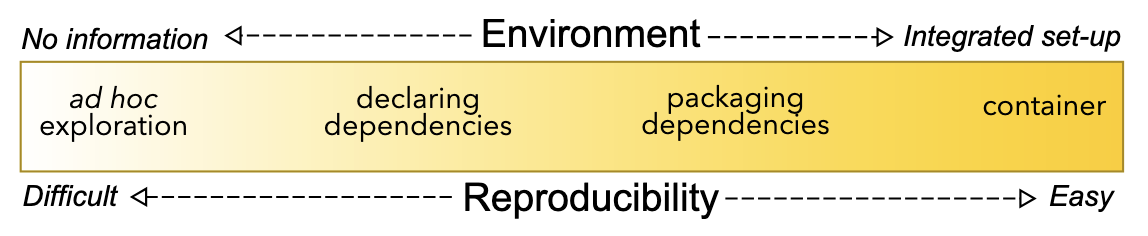
  • How far should you go to make a result reproducible? It depends on who has to rerun it
  • At minimum, declare your dependencies so others know what you used
  • Manage them with a package or environment manager (conda, pip, uv)
  • Pin them with renv (R) or uv (Python), which record exact versions
  • Host them online with Code Ocean ($$$) or Binder (free and limited)
  • Go further with containers (Docker, Apptainer) for full portability
  • Your project sits near the right-hand end, and the rest of today is how to get there

How to declare dependencies?

One file in the repository root

  • Say your analysis uses Python, NumPy, pandas, and matplotlib. Ask yourself:
    • What packages do I need?
    • Will this work on my collaborator’s operating system?
    • Can someone else reproduce my results?
  • Use a package manager to declare your dependencies in a single file
  • Store it in the repository root so collaborators can install everything in one step
  • Which file depends on your package manager:
    • pip (Python only): requirements.txt
    • conda (Python and R): environment.yml
    • uv (Python only): pyproject.toml and uv.lock
  • Know requirements.txt best: every Dockerfile reads it, including your project starter’s
  • Let’s see all three

Virtual environments 🌐

venv and pip: an isolated Python

The workflow your Dockerfile will use

  • venv ships with Python. It creates a folder with its own python and site-packages
  • Nothing you install inside it touches the system Python
  • Two projects can keep two versions of the same package
  • Create it, switch into it, and install:
python3 -m venv .venv

source .venv/bin/activate    # macOS and Linux
.venv\Scripts\activate       # Windows

pip install requests polars
  • Add .venv/ to your .gitignore. The package list goes into git; the folder itself stays on your machine
  • which python tells you which interpreter you are actually using:
which python
/private/tmp/[...]/l23/venv-demo/.venv/bin/python

python --version
Python 3.14.6

pip --version
pip 26.1.2 [...] (python 3.14)
  • The path ends in .venv/bin/python, so the environment is active
  • The install itself:
Successfully installed certifi-2026.7.22
charset_normalizer-3.5.1 idna-3.19 polars-1.44.0
polars-runtime-32-1.44.0 requests-2.34.2
urllib3-2.7.0
  • Docker images do this too
  • The project starter’s Dockerfile runs python3 -m venv /opt/venv and sets ENV PATH="/opt/venv/bin:$PATH", so every later instruction uses that interpreter without activation

requirements.txt: the file you commit

pip freeze writes it and pip install -r reads it

  • Inside the clean environment, pip freeze prints every installed package with its exact version:
pip freeze > requirements.txt
cat requirements.txt

certifi==2026.7.22
charset-normalizer==3.5.1
idna==3.19
polars==1.44.0
polars-runtime-32==1.44.0
requests==2.34.2
urllib3==2.7.0
  • Two packages became seven lines because pip lists the dependencies of your dependencies
  • The == pins say “these exact versions”
  • Your collaborator makes their own environment and installs from the file:
python3 -m venv .venv
source .venv/bin/activate
pip install -r requirements.txt
  • Run pip freeze inside a conda environment and some lines come out as name @ file:///... local paths, which install nowhere else
  • Freeze inside a plain venv and the problem never appears
  • Our project starter repo pins every package by hand, with a comment for each:
# Talking to web APIs
requests==2.34.2

# Data processing (use either, or both)
polars==1.44.0
duckdb==1.5.5

Conda in one slide

You met conda in DATASCI 151

  • Conda manages environments and packages together, and installs non-Python software: compilers, R, CUDA
  • Create it and switch into it:
conda create --name l23-demo \
  python=3.14 numpy pandas -y
conda activate l23-demo
  • Export it with --from-history, which records only the packages you asked for:
conda env export --name l23-demo \
  --from-history > environment.yml
  • Others recreate it with conda env create --file environment.yml, then conda activate l23-demo
  • The file it produced:
name: l23-demo
channels:
  - conda-forge
  - defaults
dependencies:
  - pandas
  - numpy
  - python=3.14
prefix: /Users/dafreir/miniconda3/envs/l23-demo
  • Drop --from-history and it lists every transitive package instead:
  - _openmp_mutex=4.5=7_kmp_llvm
  - bzip2=1.0.8=h4e30115_10
  - libblas=3.11.0=9_h51639a9_openblas
  - libcxx=23.1.0=h55c6f16_0
  [...]
  • Those files describe one machine exactly but rarely install on another. The next slide takes one apart

What are build strings?

Reading a conda package specification

  • A conda build is a specific compiled binary of a package
  • The same version can be compiled differently per platform, Python version, or feature set
  • A full conda package specification:
numpy=1.21.5=py39h12345_0
└──┬─┘└─┬──┘ └────┬───┘└┬┘
   │    │         │     │
   │    │         │     └─ Build number (0)
   │    │         └─────── Build string (py39h12345)
   │    └───────────────── Version (1.21.5)
   └────────────────────── Package name (numpy)
  • The --no-builds flag strips it, making the file portable across platforms
  • The build string (py39h12345) encodes metadata:
    • Python version (py39, py310)
    • Architecture (linux_64, osx_arm64)
    • Compiler (gcc9, clang)
    • Features (nomkl, cuda)
  • Why do builds exist?
    • Software is compiled differently per operating system
    • Packages target specific Python versions
    • Builds enable or disable optional features
    • Different compilers produce different binaries
  • The line libblas=3.11.0=9_h51639a9_openblas on the previous slide will not resolve on a Linux collaborator’s machine

uv: a fast Python package manager

Maybe new to you
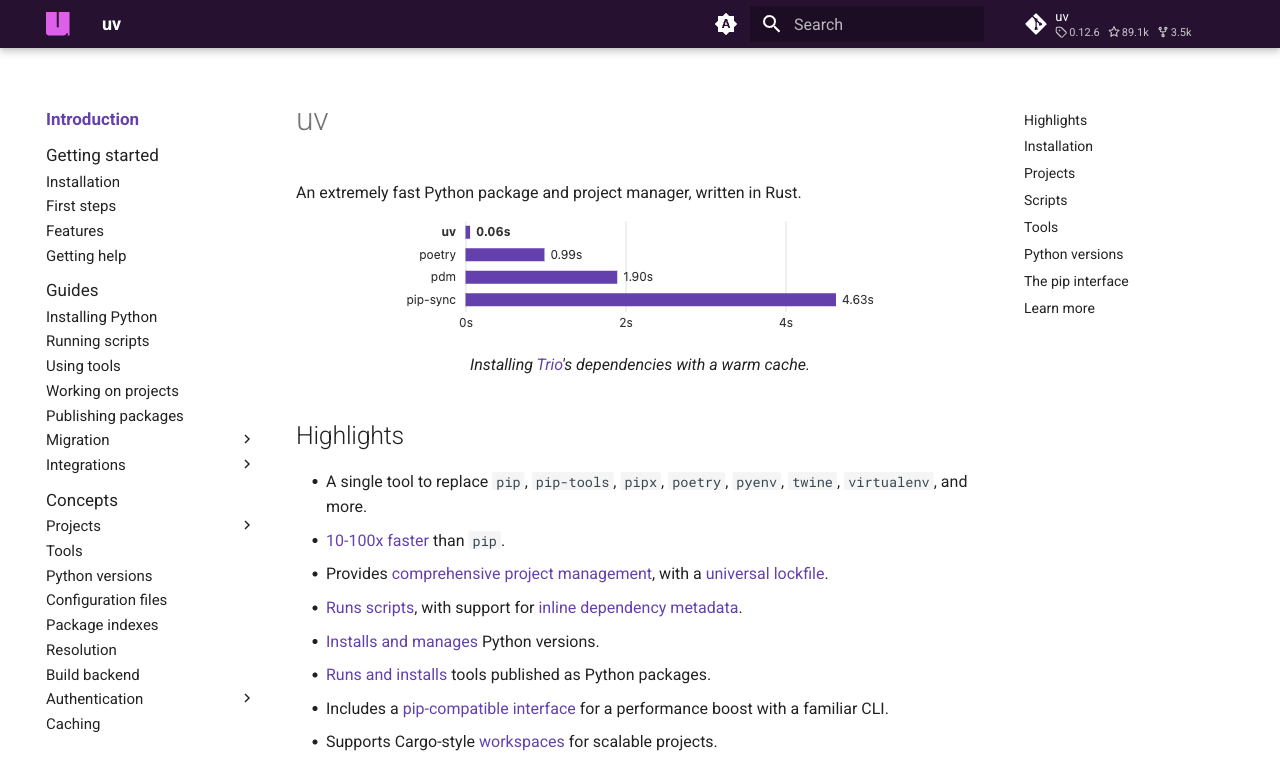
  • uv is a Python package and project manager built by Astral, the people behind the Ruff linter
  • Written in Rust, it replaces pip, pip-tools, pipenv, poetry, virtualenv, and pyenv with one command
  • It installs Python itself, so you need no separate installer
  • Install it:
# macOS and Linux
curl -LsSf https://astral.sh/uv/install.sh | sh

# or with Homebrew
brew install uv

uv --version
uv 0.11.7 (9d177269e 2026-04-15
aarch64-apple-darwin)

uv init l23-uv-demo --python 3.14
cd l23-uv-demo
uv add polars requests

Using CPython 3.14.6 interpreter at:
  /opt/homebrew/opt/python@3.14/bin/python3.14
Creating virtual environment at: .venv
Resolved 8 packages in 1.62s
Prepared 3 packages in 1m 06s
Installed 7 packages in 12ms
 + polars==1.44.0
 [...]
 + requests==2.34.2
  • Eight packages resolved in 1.62 seconds, environment created along the way

uv: project files and sharing

Just two files, and both belong in git

  • pyproject.toml holds your direct dependencies and is meant for humans. Mine after uv add:
[project]
name = "l23-uv-demo"
version = "0.1.0"
description = "Add your description here"
readme = "README.md"
requires-python = ">=3.14"
dependencies = [
    "polars>=1.44.0",
    "requests>=2.34.2",
]
  • TOML (Tom’s Obvious Minimal Language): a config format of key-value pairs and [sections]. Created by Tom Preston-Werner, a GitHub co-founder. More here
    • Very similar to YAML, which we saw when writing Quarto documents
  • uv init also writes a .gitignore, a README.md, and a main.py
  • uv.lock is generated for you, recording the exact version and hash of every package
  • Mine is 182 lines for eight packages. You never edit it by hand
  • Push both pyproject.toml and uv.lock. Your collaborator clones and runs uv sync to get the same environment:
uv sync
Resolved 8 packages in 2ms
Checked 7 packages in 1ms

uv run python -c \
  "import polars; print(polars.__version__)"
1.44.0
  • uv run executes inside the project environment, so there is nothing to activate
  • uv manages Python versions too: uv python install 3.14 and uv python pin 3.14
  • More about uv here

uv: handing a project to Docker

Every Dockerfile still wants requirements.txt

  • Docker images read requirements.txt, and uv export writes one from your lock file:
uv export --format requirements-txt --no-hashes

Resolved 8 packages in 2ms
# This file was autogenerated by uv via the
# following command:
#    uv export --format requirements-txt
#      --no-hashes
certifi==2026.7.22
    # via requests
charset-normalizer==3.5.1
    # via requests
polars==1.44.0
    # via l23-uv-demo
requests==2.34.2
    # via l23-uv-demo
[...]
  • Drop --no-hashes and each line also carries the wheel’s SHA-256, which pip then verifies
  • Redirect it into the file your Dockerfile copies:
uv export --format requirements-txt \
  --no-hashes > requirements.txt
  • The # via comments name which package pulled each dependency in. pip freeze never does
  • Want the venv and pip workflow at uv’s speed? Drop-in replacements:
uv venv
source .venv/bin/activate
uv pip install -r requirements.txt
  • Same commands, same files as the venv slides, with uv doing the install

Containers 🚢

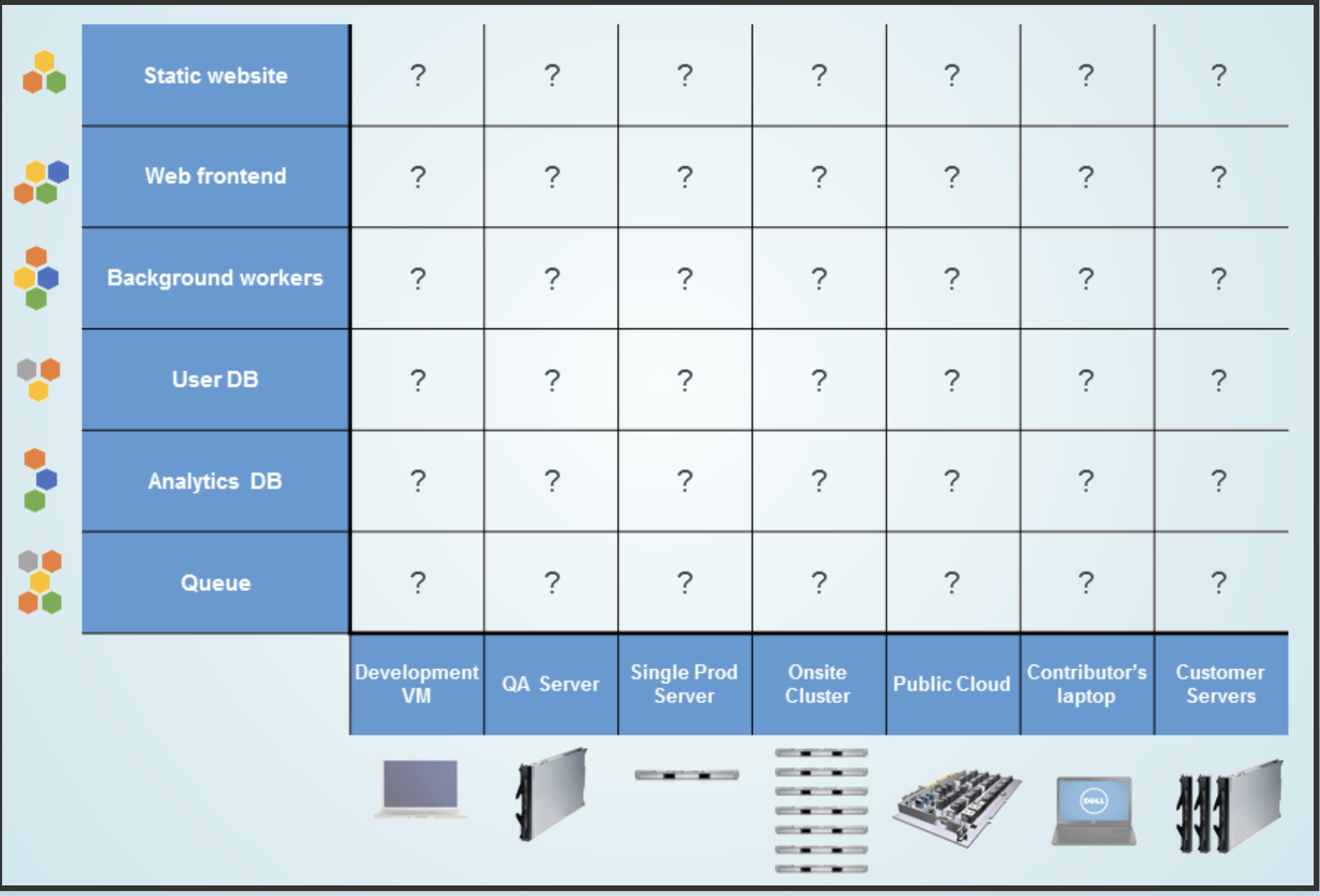
The matrix from hell

Each cell is one combination someone has to test by hand

Cargo transport before 1960
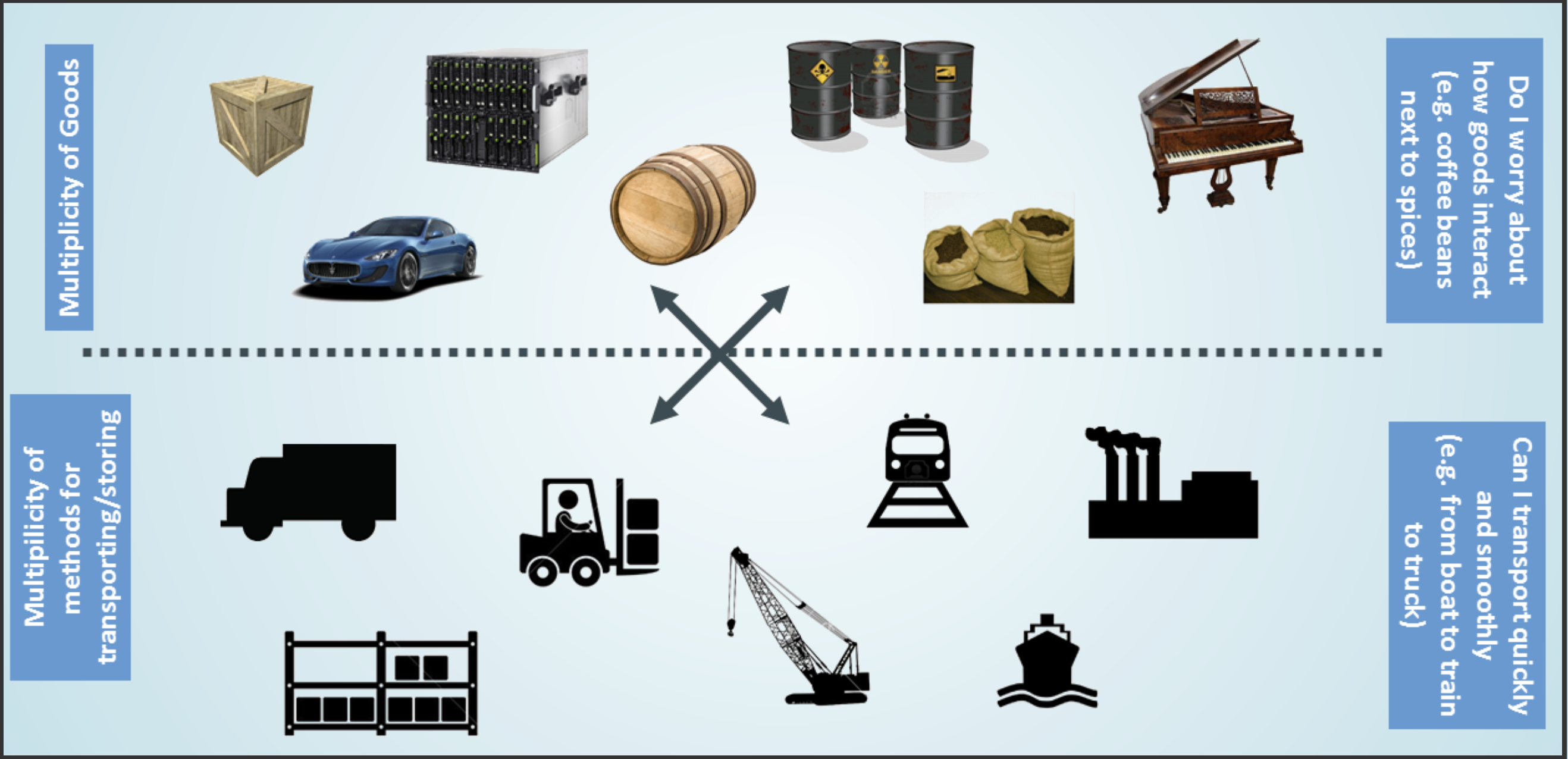
Sacks, barrels, and crates, each loaded differently at every port

Also a matrix from hell
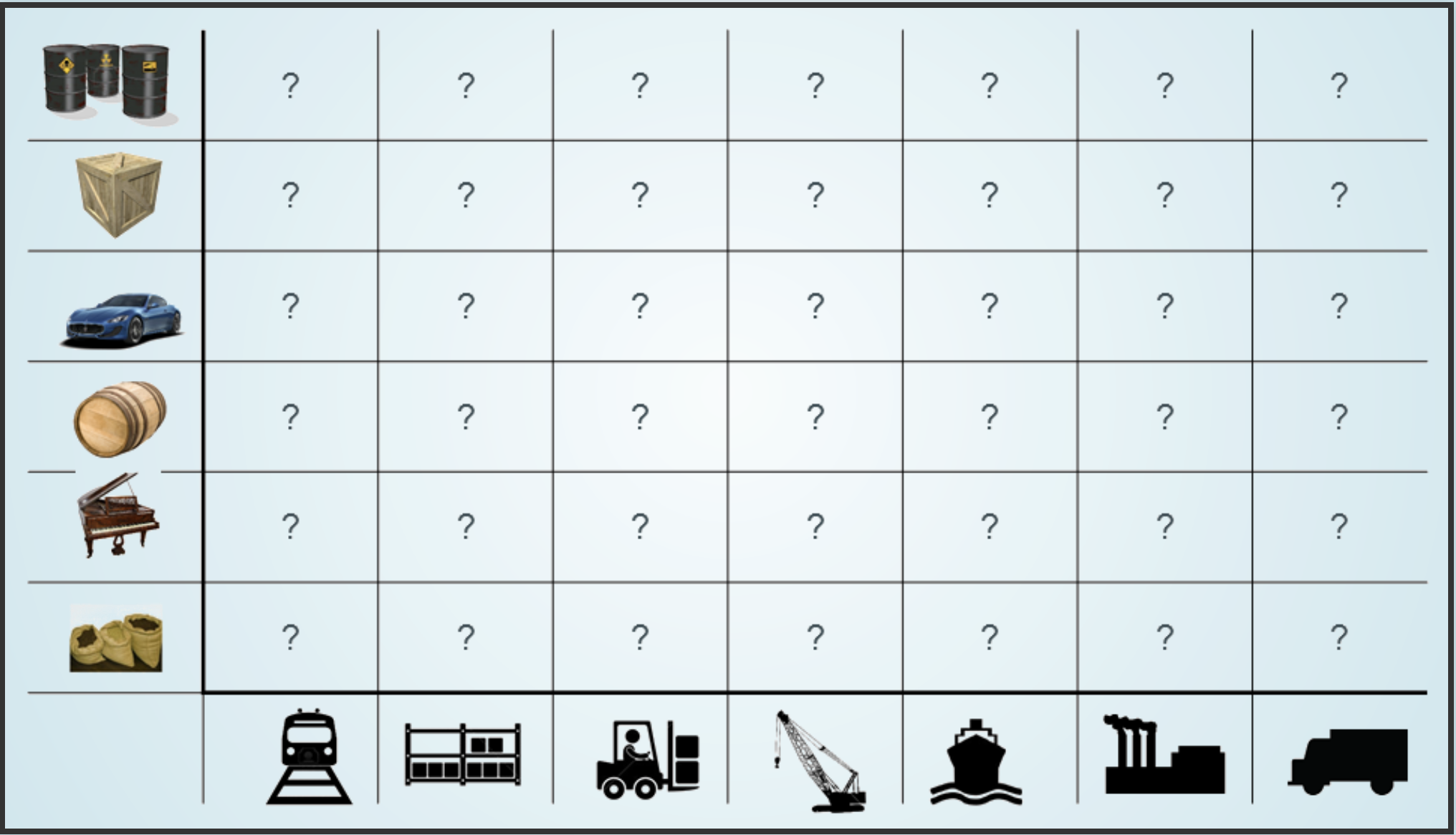
Shipping had the same combinatorial problem

The solution: intermodal containers
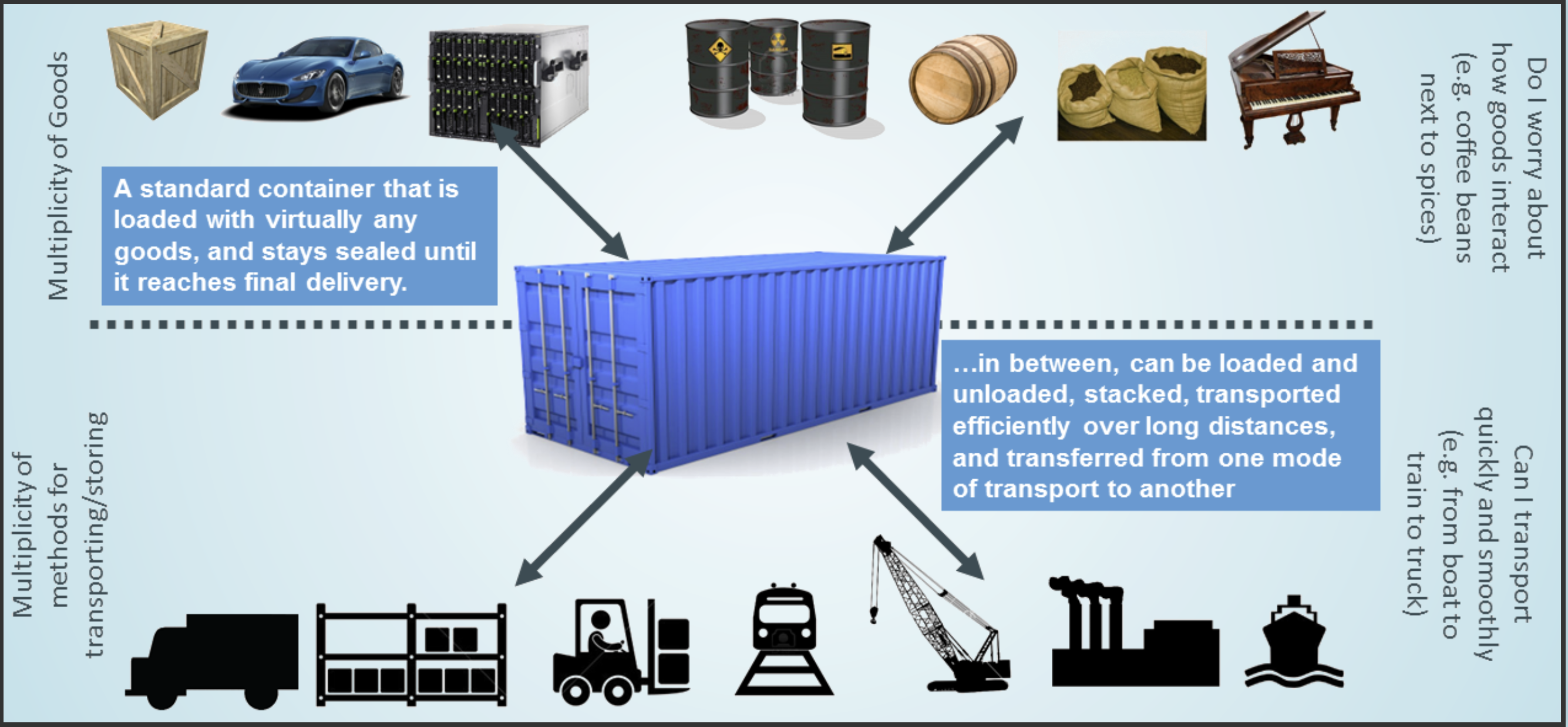
A standard box fits every ship, train, and lorry, and nobody opens it in transit

Docker is a container for your code
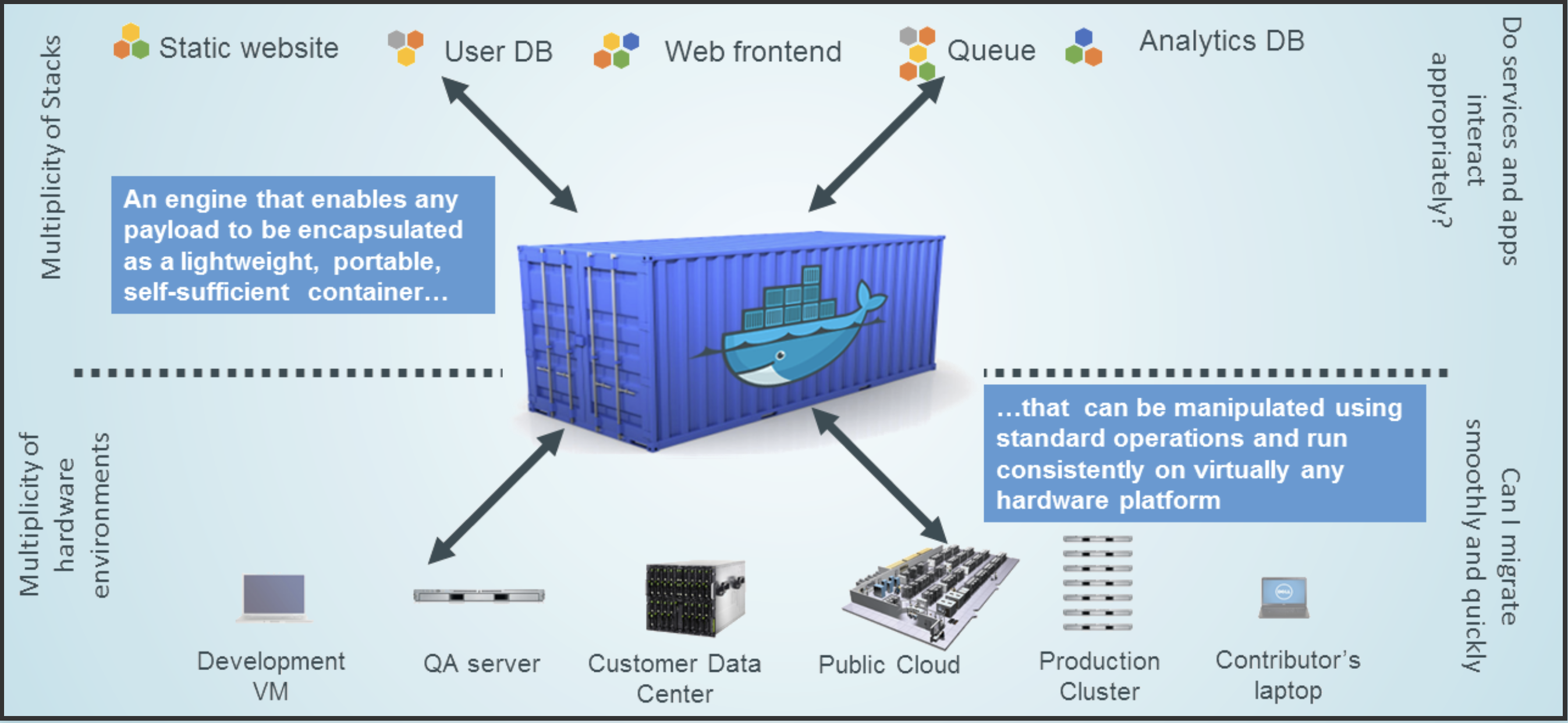
Your code, its libraries, and its Python version inside a container

Docker eliminates the matrix from hell
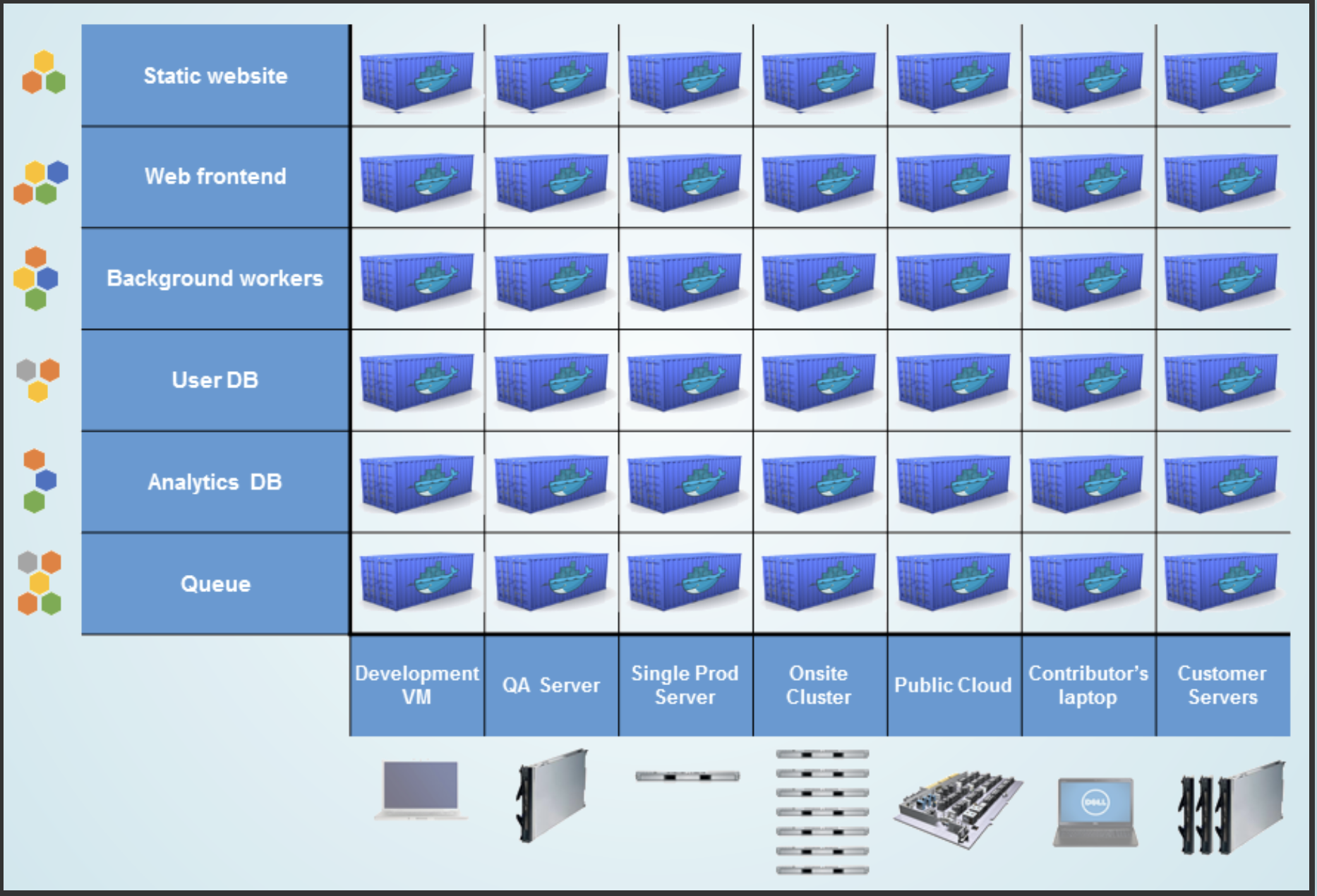
The host only needs Docker, and the image carries everything else

What are software containers?

Lighter than a virtual machine

  • Containers package software so it can run on any system
  • A virtual machine boots a whole operating system. A container carries only the libraries the application needs, so it starts in a second
  • A virtual environment isolates Python packages. A container also carries the operating system libraries, the interpreter, and the system tools your code touches
  • It then runs on any system with Docker installed, whatever the operating system or hardware

Lecture 10 listed four ingredients of a reproducible result: code, data, environment, documentation. A container ships the environment with the code already inside it

What is Docker?

Images, containers, and registries

  • Docker is the leading containerisation platform
  • Three concepts that you should know:
    • Image: a read-only template holding the operating system, the libraries, your code, and the configuration. You build images from a Dockerfile
    • Container: a running instance of an image. Many containers from one image
    • Registry: a collection of repositories you pull images from, such as Docker Hub
  • An image is a class and a container is an object (more here)
  • The syntax borrows from Git and Linux, so it should feel familiar
  • The docker command is a client. It sends every instruction to a background daemon, which does the building and the running
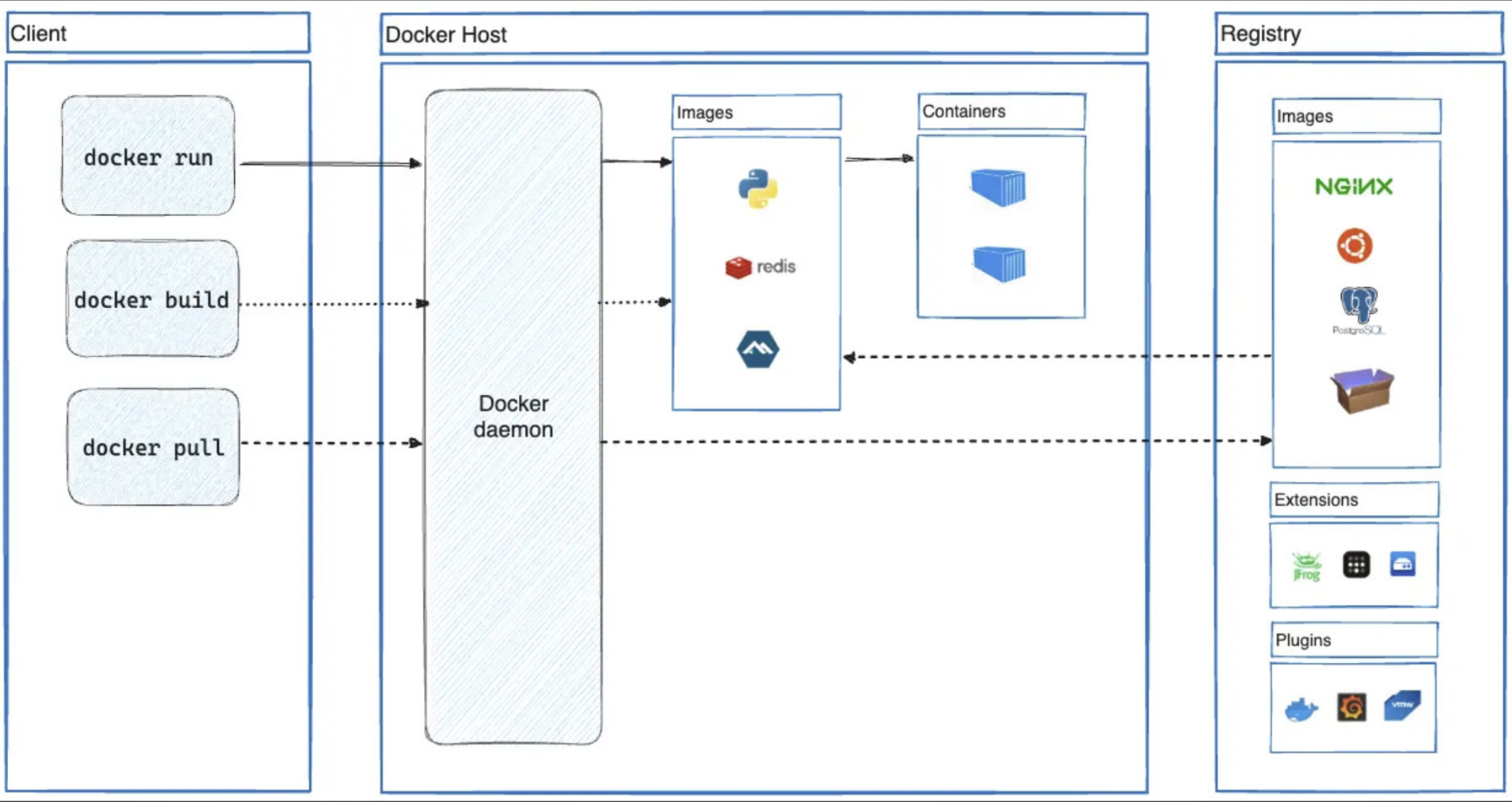
Client, daemon, and registry, from the Docker documentation

Docker Desktop and the alternatives

  • Docker Desktop runs the Docker engine on macOS and Windows. It is how most of you will install Docker
  • The free licence covers non-commercial open source work and companies with fewer than 250 employees and under $10M in annual revenue
  • The personal plan also caps Docker Hub at 100 image pulls per hour
  • Docker Engine itself is open source and free everywhere, including every Linux server
  • Free alternatives that take the same commands: Podman, Colima (macOS), OrbStack (macOS, free for personal use), and Rancher Desktop

Every docker command on these slides ran through OrbStack. The commands are identical under Docker Desktop
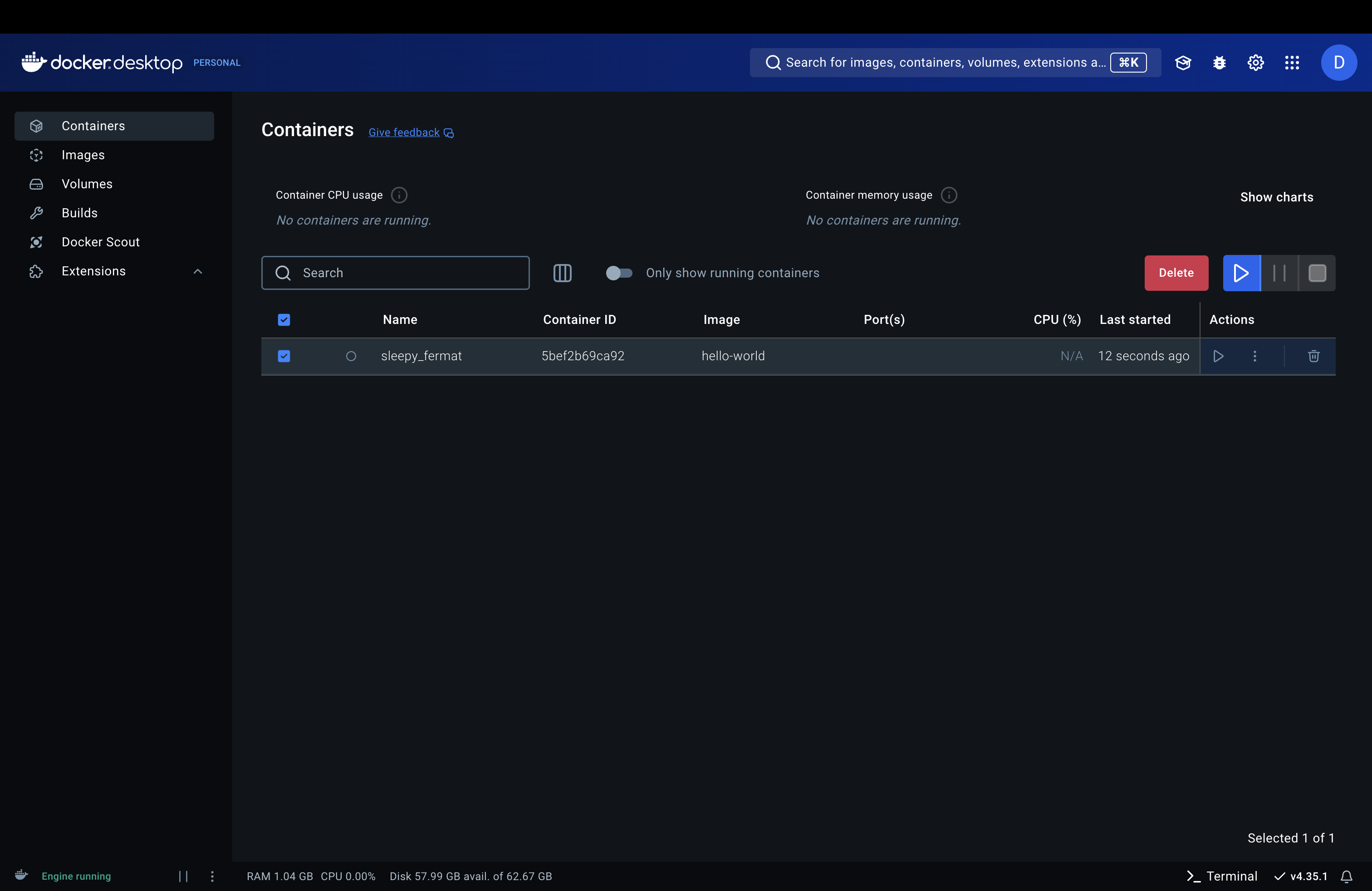
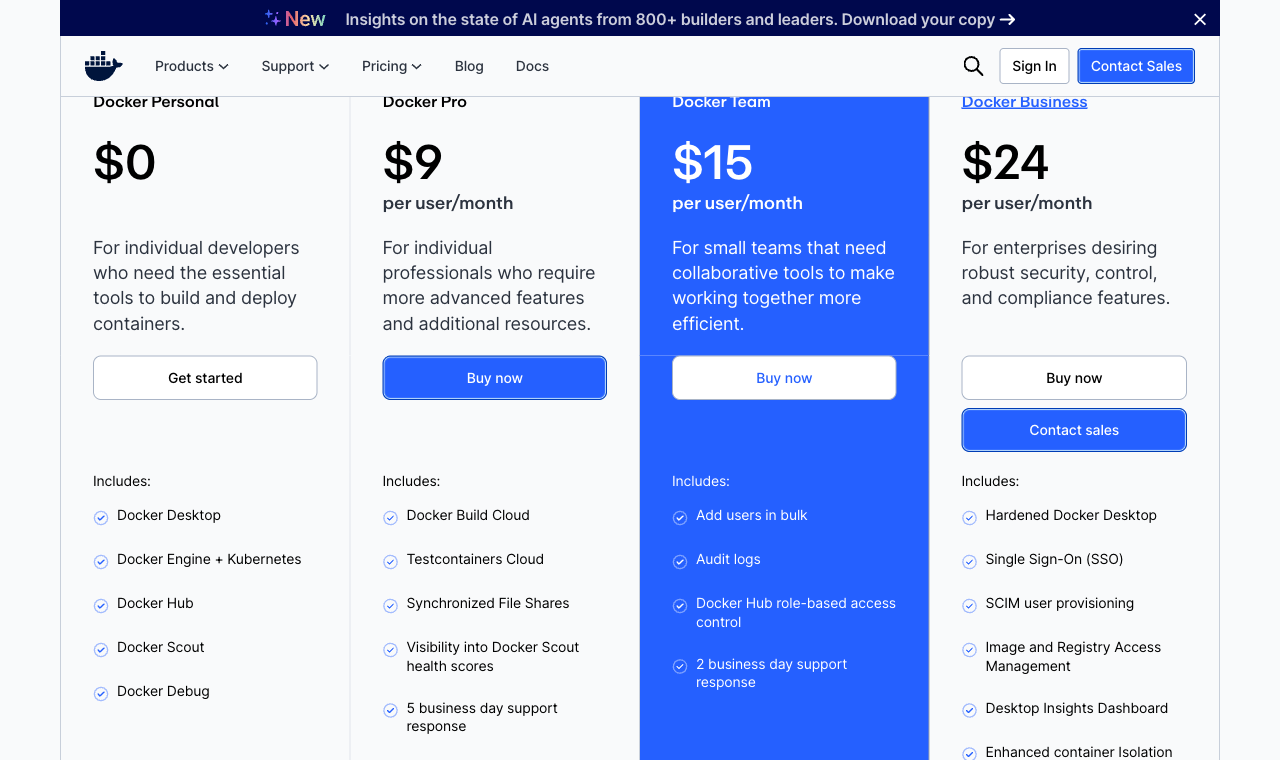
Docker Desktop on macOS

Check your installation with hello-world

docker run hello-world

Unable to find image 'hello-world:latest' locally
latest: Pulling from library/hello-world
58dee6a49ef1: Pull complete
Digest: sha256:5dd0d3e6e255913fc30f90b9f2b1d359cc2cbdb48090cc4b65f1676e203243cc
Status: Downloaded newer image for hello-world:latest

Hello from Docker!
This message shows that your installation appears to be
working correctly.
[...]
docker -v

Docker version 29.4.0, build 9d7ad9f
  • The image was not on my laptop, so Docker pulled it from Docker Hub and ran it
  • The message lists the four steps: the client contacted the daemon, the daemon pulled the image, created a container from it, and streamed the output to your terminal
  • Those four steps are the client, daemon, and registry diagram from two slides ago
  • Create a free Docker Hub account as soon as possible. You will need it!

Nothing happens and the terminal complains about a daemon? The application is not running: Appendix 02

Let’s create our first container

A Dockerfile is a plain-text recipe

  • A Dockerfile is a plain-text recipe that builds everything needed to recreate a project
  • It goes under version control, named Dockerfile with no extension
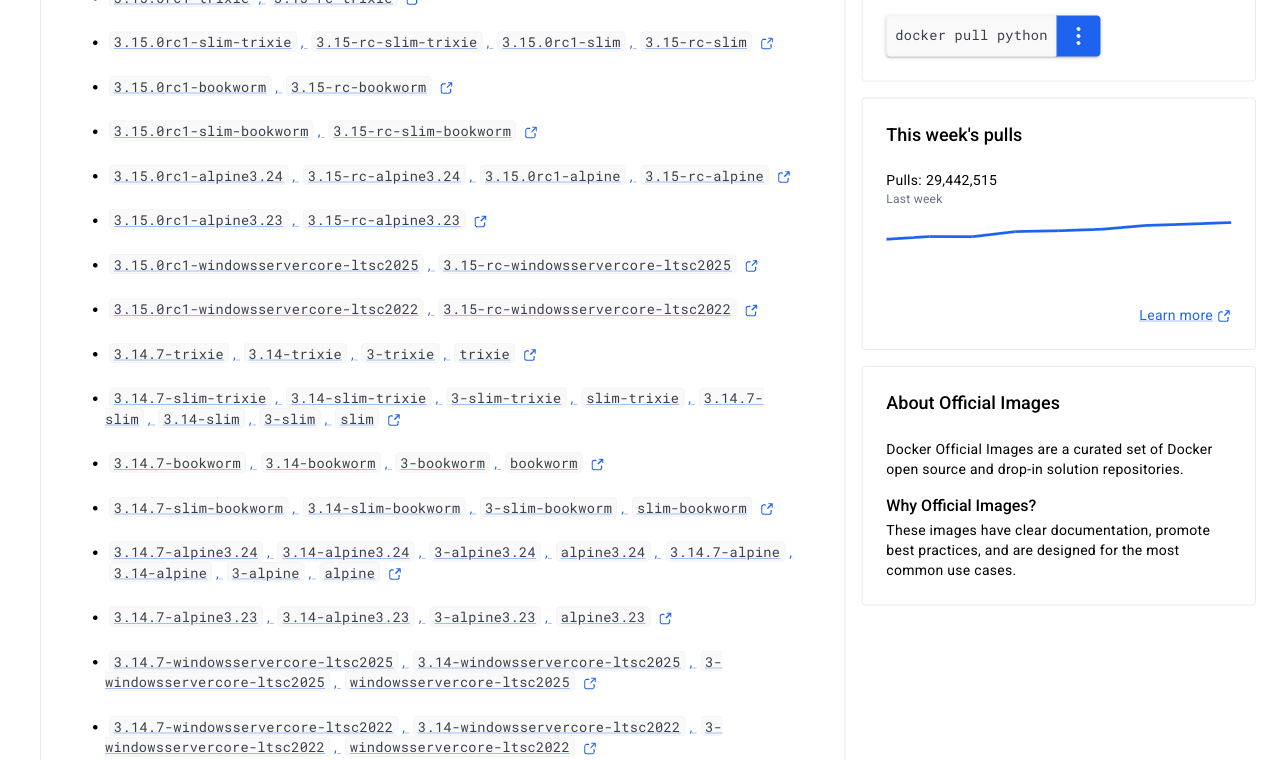
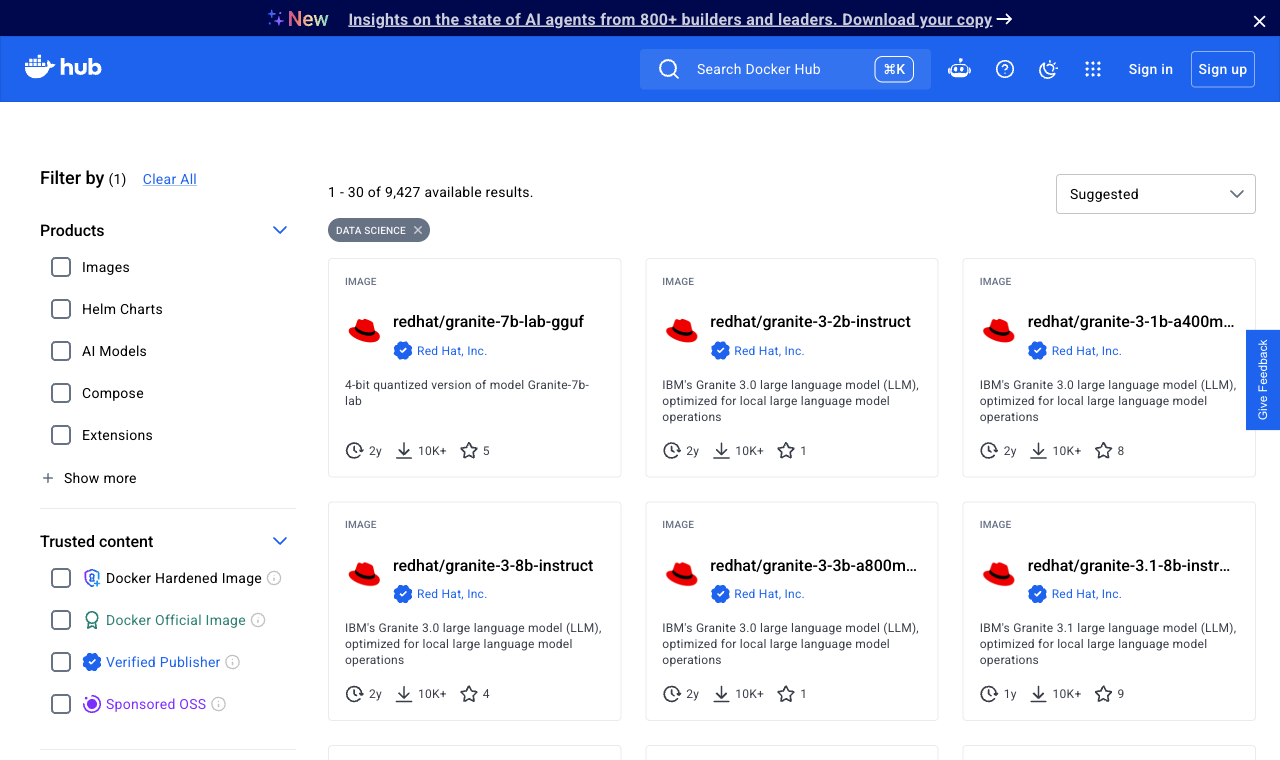
  • You rarely start from scratch: Docker Hub holds base images for almost anything
  • Its Data Science category alone showed 9,427 results (August 2026)
  • We build one now with three files. Your project’s has the same shape
  • Demo files: lectures/lecture-23/docker/ in the course repository
  • requirements.txt, same file from the pip slides:
numpy==2.5.2
pandas==3.0.5
  • hello.py, so the container has something to do:
import numpy as np
import pandas as pd

print("Hello, DATASCI350!")
print(f"numpy  {np.__version__}")
print(f"pandas {pd.__version__}")
  • The third file is the Dockerfile. The next slide takes it line by line
The Dockerfile

Five instructions and five layers

# Start from an official Python image
FROM python:3.14-slim

# Everything below happens inside /app
WORKDIR /app

# Copy requirements first, so Docker can
# cache the install
COPY requirements.txt .
RUN pip install --no-cache-dir -r requirements.txt

# Copy the script
COPY hello.py .

# What runs when the container starts
CMD ["python", "hello.py"]
  • --no-cache-dir -r means “install from the file and don’t keep a cache of the wheels”
  • Let’s build it! -t tags the image datasci350-example, and . is the folder holding the Dockerfile:
docker build -t datasci350-example .
  • docker build runs the instructions in sequence, layer by layer, and each one adds a layer
Instruction What it does Runs when
FROM Picks the base image Build
WORKDIR Sets the folder for every later step Build
COPY Brings a file from your folder into the image Build
RUN Executes a command inside the image Build
CMD Names the command the container starts with Start

The official Python image on Docker Hub: https://hub.docker.com/_/python
The build, step by step

Real output (trimmed)

docker build --progress=plain -t datasci350-example .

#5 [1/5] FROM docker.io/library/python:3.14-slim
#5 sha256:bf7af02297 30.16MB / 30.16MB 63.7s done
#5 DONE 64.4s

#6 [2/5] WORKDIR /app
#6 DONE 0.2s

#7 [3/5] COPY requirements.txt .
#7 DONE 0.0s

#8 [4/5] RUN pip install --no-cache-dir -r
    requirements.txt
#8 51.68 Successfully installed numpy-2.5.2
    pandas-3.0.5 [...]
#8 DONE 51.9s

#9 [5/5] COPY hello.py .
#9 DONE 0.1s

#10 exporting to image
#10 naming to datasci350-example:latest done
#10 DONE 2.7s
  • The five numbered steps, [1/5] to [5/5], match the five Dockerfile instructions
  • Step [1/5] took 64.4 seconds because Docker downloaded the 30 MB python:3.14-slim base image. That happens once per machine
  • Step [4/5] is the pip install, and its 51.9 seconds is the slow part of every rebuild
  • The whole build came to about two minutes, almost all of it downloading
  • docker images shows what came out:
docker images datasci350-example

IMAGE                DISK USAGE  CONTENT SIZE
datasci350-example        406MB          88MB
  • Python, NumPy, pandas, Debian OS, and your code

Layer caching

Why the second build takes no time at all

  • Run the same build again, changing nothing:
docker build -t datasci350-example .

#5 [1/5] FROM docker.io/library/python:3.14-slim
#5 DONE 0.0s

#6 [3/5] COPY requirements.txt .
#6 CACHED

#7 [4/5] RUN pip install --no-cache-dir -r
    requirements.txt
#7 CACHED

#8 [2/5] WORKDIR /app
#8 CACHED

#9 [5/5] COPY hello.py .
#9 CACHED

#10 exporting to image
#10 DONE 0.1s
  • Every layer says CACHED and the build finishes in 0.754 seconds
  • Docker reuses a layer when its instruction and its inputs are unchanged
  • Once one layer misses, every layer below it rebuilds
  • That is why COPY requirements.txt sits above COPY hello.py: editing your script invalidates only the last layer, and the slow pip install stays cached
  • Put COPY . . at the top and any edit re-installs every package
  • Your project starter’s Dockerfile uses the same ordering, for the same reason
  • Docker also reorders independent steps, which is why the cached run reports #6 as step [3/5]

Let’s run and share the container

From docker run to Docker Hub

  • Run it. The --rm flag deletes the container when it exits, so you do not accumulate hundreds of dead ones:
docker run --rm datasci350-example

Hello, DATASCI350!
numpy  2.5.2
pandas 3.0.5
  • Those version numbers come from inside the image, so they are the same on every machine that runs it
  • The image is now something you can hand to someone 🤓
docker login
  • Tag the image with your Docker Hub username:
docker tag datasci350-example \
  danilofreire/datasci350-example:latest
  • Push it:
docker push danilofreire/datasci350-example:latest

bf7af0229701: Pushed
c66215f6ebe7: Pushed
latest: digest: sha256:b24fd8fc20ef... size: 856
  • The name before the slash is your account, so use your own username

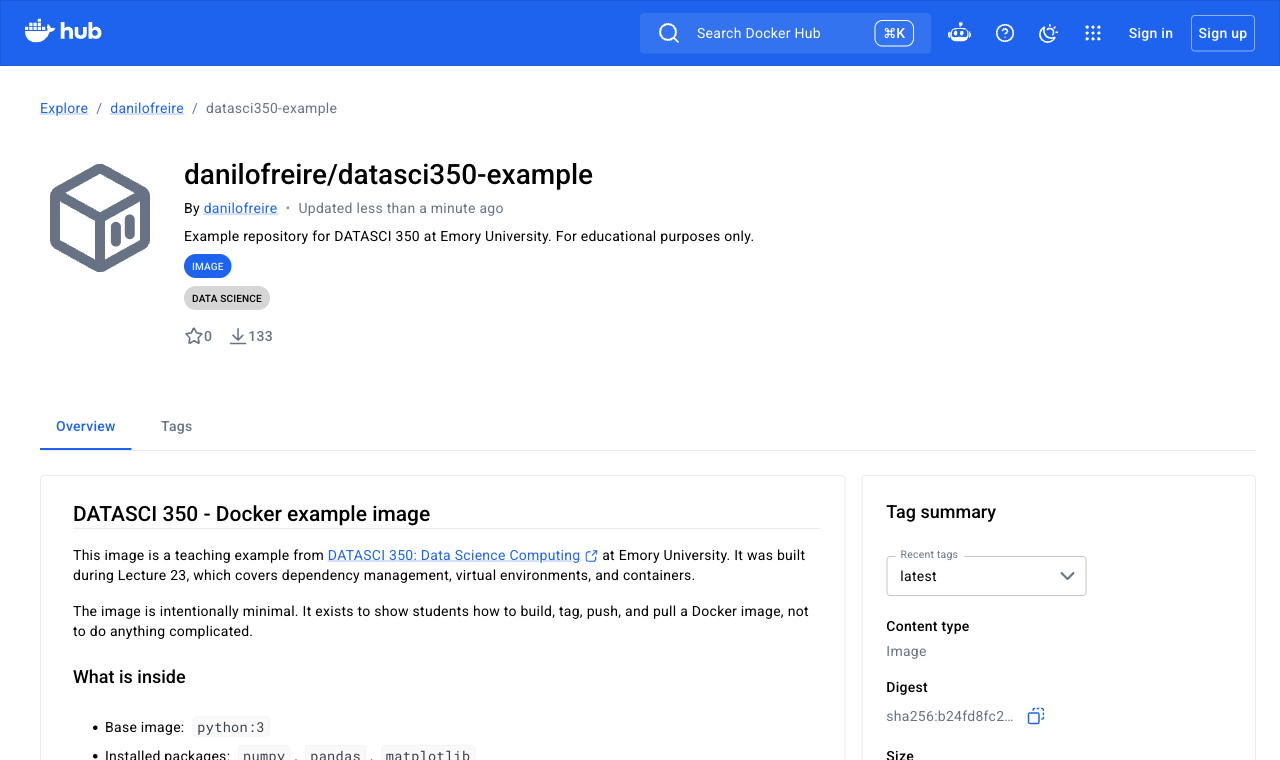
And here it is

The image on Docker Hub

https://hub.docker.com/r/danilofreire/datasci350-example

Pushed and captured on 26 August 2026

Docker pull

Anyone, anywhere, two commands

  • The image sits on Docker Hub now, so anyone can fetch it and run it:
docker pull danilofreire/datasci350-example:latest
docker run --rm danilofreire/datasci350-example:latest

latest: Pulling from danilofreire/datasci350-example
Digest: sha256:b24fd8fc20ef...
Status: Downloaded newer image
Hello, DATASCI350!
numpy  2.5.2
pandas 3.0.5
  • They need Docker installed and nothing else: no Python, no NumPy, no matching operating system
  • Our example is tiny, and the shape is the same for a real project: your report renders inside the image the way this script runs
  • That is what the container part of the project grade tests. I run docker build and docker run on a clean machine, and either your report appears or it does not
  • Lecture 25 builds the project container instruction by instruction

Try it yourself! 🧠

Ten minutes

  1. Copy the docker/ folder from the course repository: https://github.com/danilofreire/datasci350/tree/main/lectures/lecture-23/docker
  2. Open a terminal inside that folder
  3. Run docker build -t datasci350-example .
  4. Run docker run --rm datasci350-example. Three lines appear
  5. Open requirements.txt. Add the line polars==1.44.0
  6. Open hello.py. Import polars and print pl.__version__
  7. Run docker build -t datasci350-example . again
  8. Read the output. Note which steps say CACHED
  9. Run docker run --rm datasci350-example. Four lines now
  10. If you have time, swap the two COPY lines and rebuild

Solution: Appendix 01

Summary

What we learned today

Four tools and one deliverable

  • Dependency management is writing down the software your code assumes: Lecture 10’s third ingredient
  • The Python 2 print statement showed the failure: the script was fine and the environment moved
  • venv and pip: an isolated Python, pip freeze writing == pins, pip install -r reading them back
  • Conda: environments and packages together, --from-history for a file that travels, build strings for one that stays home
  • uv: pyproject.toml and uv.lock, uv sync for collaborators, uv export when a Dockerfile needs requirements.txt
  • Containers: an image is the recipe, a container is a running instance, and a registry is where images live
  • We built one from python:3.14-slim in about two minutes, and layer caching brought the rebuild down to 0.754 seconds
  • Docker Desktop is free at your scale, and Podman, Colima, OrbStack, and Rancher Desktop run the same commands

The container you push is the deliverable. On my Macbook I will run docker build and then docker run, and your report either appears or it does not 😅

Next class

Quiz first, Docker after

Quiz 04: web APIs and JSON, from Lectures 18 and 19. No new material that day

Lecture 25, on 24 November, is Docker for Data Science. We take the project starter’s Dockerfile instruction by instruction, and it installs Quarto as well as Python

Everything today was the small version of that file

Before then:

  1. Install Docker Desktop, or an alternative from the licensing slide, and check docker run hello-world
  2. Create a free account on Docker Hub
  3. Clone https://github.com/danilofreire/datasci350-project-starter and run docker build once on your own wifi

Quiz 05 covers Lectures 21, 22, 23, and 25. The final project is due on the last day of classes

And that’s all for today! 🎉

Appendix 📚

Appendix 01: Exercise solution

What the rebuild printed

Steps 5 and 6, the two edited files:

# requirements.txt
numpy==2.5.2
pandas==3.0.5
polars==1.44.0
# hello.py
import numpy as np
import pandas as pd
import polars as pl

print("Hello, DATASCI350!")
print(f"numpy  {np.__version__}")
print(f"pandas {pd.__version__}")
print(f"polars {pl.__version__}")

Step 9, the run:

docker run --rm datasci350-example

Hello, DATASCI350!
numpy  2.5.2
pandas 3.0.5
polars 1.44.0
  • The image grew from 406MB to 684MB on disk

Steps 7 and 8, the rebuild on my laptop:

#6 [2/5] WORKDIR /app
#6 CACHED

#7 [3/5] COPY requirements.txt .
#7 DONE 0.0s

#8 [4/5] RUN pip install --no-cache-dir -r
    requirements.txt
#8 227.5 Successfully installed numpy-2.5.2
    pandas-3.0.5 polars-1.44.0 [...]
#8 DONE 228.1s

#9 [5/5] COPY hello.py .
#9 DONE 0.1s
  • One layer stayed cached and three rebuilt. The miss at #7 forced every later layer to run again
  • Most of those 228 seconds went on polars, which the first build never fetched
  • Step 10: with the COPY lines swapped, editing hello.py alone invalidates COPY hello.py and re-runs pip install for nothing

Appendix 02: When something goes wrong

Six errors you are likely to meet

Cannot connect to the Docker daemon

Docker Desktop is not running. Start the application, wait for the whale icon to settle, and try again. On my laptop OrbStack was stopped, and docker info answered failed to connect to the docker API at unix:///Users/dafreir/.orbstack/run/docker.sock.

permission denied ... /var/run/docker.sock

On Linux, your user is not in the docker group. Run sudo usermod -aG docker $USER, then log out and back in.

pip: command not found

Your virtual environment is not active. Run source .venv/bin/activate and check with which python, which should print a path ending in .venv/bin/python.

No matching distribution found for numpy==2.5.2

That version does not exist for your Python. Check the pin against PyPI, or loosen it to numpy>=2.0.

toomanyrequests: You have reached your pull rate limit

Docker Hub allows 100 anonymous pulls per hour from one address. Run docker login with your free account and pull again.

failed to read dockerfile: open Dockerfile: no such file or directory

You are in the wrong folder. The . at the end of docker build -t name . is where Docker looks, so cd into the folder holding the Dockerfile