DATASCI 350 - Data Science Computing

Lecture 08 - Review Session

Danilo Freire

Department of Data and Decision Sciences
Emory University

Welcome back! 😊

Time to review 📚

Today’s plan

How today works

  • Six rounds, one for each part of the course so far
  • In each round I revise the material for a few minutes, then you type for a few minutes, then we check the answers together
  • You will be working for about half of the class. Keep your terminal open next to these slides
  • Everything you type goes into one throwaway folder, and we delete it at the end
Round Topic Lectures
1 How computers store things 01-02
2 The shell 03
3 Files, wildcards, and text 04
4 Git on your machine 05, 07
5 GitHub and collaboration 06, 07
6 Checklist all

What the quiz looks like

  • Quiz 01 is next class, in this room, and it is worth 6%
  • You fork a repository that I give you, then clone your own copy
  • You work through a numbered list of shell and Git tasks
  • You record every command you run in a file called commands.txt
  • You push your work, then submit the link to your repository on Canvas
  • Open notes, open slides, open web, AI allowed

Set up your sandbox

Everybody types this now

cd ~
mkdir -p ds350-review
cd ds350-review
pwd
  • One folder holds everything we do today, so nothing you type can touch your real work
  • Every exercise from now on starts inside ~/ds350-review
  • If a command fails, put your hand up. Somebody else in the room has the same error

Your last line should look something like:

/Users/danilo/ds350-review

or, on WSL:

/home/danilo/ds350-review

We delete this folder together at the end of the class

Before the quiz

The quiz ends with a push to GitHub. Make sure your machine is logged in before the quiz:

  • Check that you have the GitHub CLI: gh --version
  • If you do not, install it with brew install gh on macOS, or copy the command for WSL from https://cli.github.com
  • Run gh auth login. Choose GitHub.com, then HTTPS, then log in with the browser
  • Test it: push any small change to your Assignment 03 repository
  • If the push works today, it will work in the quiz

Tip

gh is the convenient route, but it is not the only one. A plain git push over HTTPS works too, as long as your browser sign-in went through.

What matters is that some push from this laptop reaches GitHub before the quiz.

Start this now if you have never pushed from this machine. Installing takes only a few minutes

Round 1: how computers store things

Bits, bytes, and lookup tables

  • Everything is stored as 0s and 1s. One digit is a bit, eight bits are a byte
  • Binary counts in powers of 2, so \(n\) bits reach \(2^n - 1\). That is why one byte stops at 255
  • Hexadecimal is base 16, and one hex digit is exactly four bits
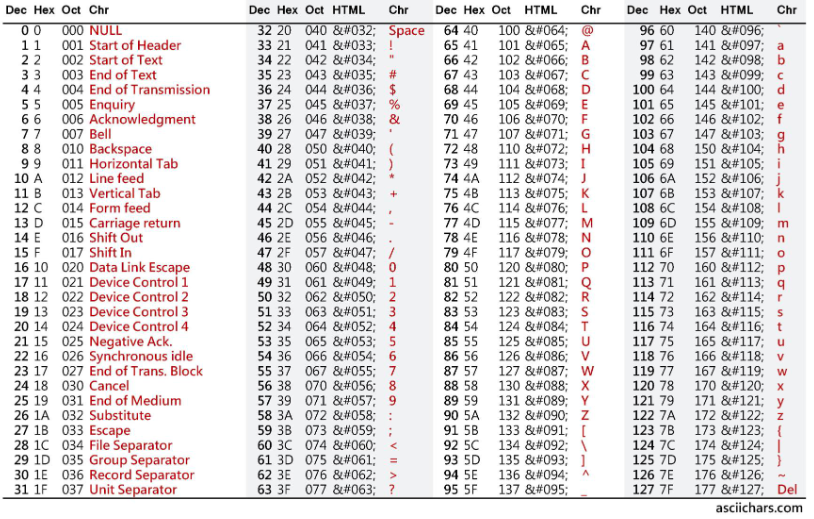
  • ASCII is a lookup table that gives 128 characters a number each, in order: A is 65, B is 66, a is 97
  • Unicode extends that to accents, other alphabets, and emoji
  • Compiled languages translate before running, interpreted ones translate as they run

Try it yourself!

Three questions, three minutes, no terminal needed

  1. How would you write 12 in binary, and how many bits does that take?

  2. In ASCII, A is 65. Without looking at the table, what number is D?

  3. Python and C++: which one is compiled, and which one is interpreted?


Round 2: the shell

The shell, and the shape of a command

  • The kernel talks to the hardware. The shell runs your commands. The terminal is the window you type them into
  • bash is the default on most Linux systems, zsh on macOS. echo $SHELL tells you which one you have
  • Every command has the same three parts:

command option(s) argument(s)

ls -lah ~/Documents
  • ls is the command, -lah are the options, ~/Documents is the argument
  • Short options take one dash and combine, so ls -l -a -h and ls -lah are the same thing
  • Spelled-out options take two dashes: ls --human-readable
  • The three you will use constantly: -l long format, -a all files including hidden ones, -h readable sizes
  • man ls opens the full manual, tldr ls gives the five things people actually use
  • Inside a manual page, /word searches and q quits. That is the one to remember under time pressure

Finding your way around

Command What it does
pwd Print the working directory
cd dir Change directory
cd - Back to where you just were
ls List files here
ls -a Include hidden files
ls -R Include subdirectories
whoami Which user you are
  • ~ is your home folder, . is here, .. is one level up
  • An absolute path starts at the very top: /Users/danilo/work
  • A relative path starts from wherever you are: ./scripts, ../data
  • Prefer relative paths in anything you share. An absolute path works on exactly one machine
  • Never put spaces in names. Use assignment-05, not Assignment 05
  • If you must, quote it (cd "My Documents") or escape it (cd My\ Documents)

Try it yourself!

Three tasks, three minutes, inside ~/ds350-review

  1. Which shell are you running?

  2. List everything in your home directory, including hidden files, with readable sizes. One command

  3. Which one of these three paths is absolute?

./scripts/run.sh

/Users/danilo/work

../data/file.csv

Round 3: files, wildcards, and text

Creating, copying, moving, deleting

Command What it does
mkdir -p a/b/c Create the whole tree
touch file Create an empty file
cp a b Copy
cp -r dir1 dir2 Copy a directory
mv a b Move, or rename
rm file Delete. No undo
rm -r dir Delete a directory and its contents
  • mkdir -p builds several levels at once and never complains if the directory already exists
  • Moving a file within its own directory under a new name is how you rename it
  • rm has no Trash and no undo. rm -rf does not even ask
  • && runs the next command only if the first succeeded, || only if it failed
  • find . -name "*.csv" searches by name, -type d by kind, -size +500k by size

One command, many files

Wildcards match files that already exist

  • * matches any number of characters
ls *.py            # every Python file
cp scripts/*.py backup/
  • ? matches exactly one character
ls data0?.csv      # data01.csv ... data09.csv

Braces invent names that do not exist yet

touch file{1..3}.txt        # file1, file2, file3
mkdir dir{a,b,c}            # dira, dirb, dirc
mkdir -p project/{data,src}

The difference that catches people out:

  • * and ? ask the shell “which files match this?”
  • {} tells the shell “write these names out for me”
  • This is why touch file*.txt creates nothing useful, and touch file{1..3}.txt creates three files

Try it yourself!

Five tasks, six minutes, inside ~/ds350-review

Tasks 1 to 4 must each fit on a single line

  1. Create project/ containing three subdirectories: data, scripts, and docs

  2. Create data01.csv through data05.csv inside project/data

  3. Create clean.py, analyse.py and plot.py inside project/scripts

  4. Create project/backup and copy only the Python files into it, chaining both commands on one line

  5. Rename project/data/data01.csv to project/data/input.csv, then run ls -R project

Quick check: which files match?

You have just renamed data01.csv to input.csv. How many files does each of these list?

ls project/data/*.csv
ls project/data/data0?.csv
  • The first lists five: input.csv, data02.csv, data03.csv, data04.csv, data05.csv
  • The second lists four. input.csv does not match, because data0? expects the name to start with data0
  • On zsh, a pattern that matches nothing gives you no matches found. That message means your pattern is wrong, not your command

Revision: text, redirects, and pipes

Command What it does
wc -l file Count the lines
head -n 5 file First five lines
tail -n 5 file Last five lines
grep "x" file Lines that contain x
sed 's/a/b/g' file Replace a with b
  • grep options worth knowing: -n numbers the lines, -i ignores capitals, -v inverts, -r searches a directory, -c counts
  • ^and matches lines that start with “and”, end$ lines that end with “end”
  • > sends output into a file and overwrites it. >> appends. Mixing them up is a common way to lose work
  • | feeds one command’s output into the next
cat sonnets.txt | grep "love" | wc -l
  • A for loop repeats over a list, and $i is the current item
for i in {1..4}; do mkdir dir$i; done

Try it yourself!

Three tasks, three minutes, inside ~/ds350-review

  1. Create a file called project/docs/countries.txt whose only line is brazil

  2. Add india to the file, without losing brazil

  3. Count how many lines contain in, using a pipe


Round 4: Git on your machine

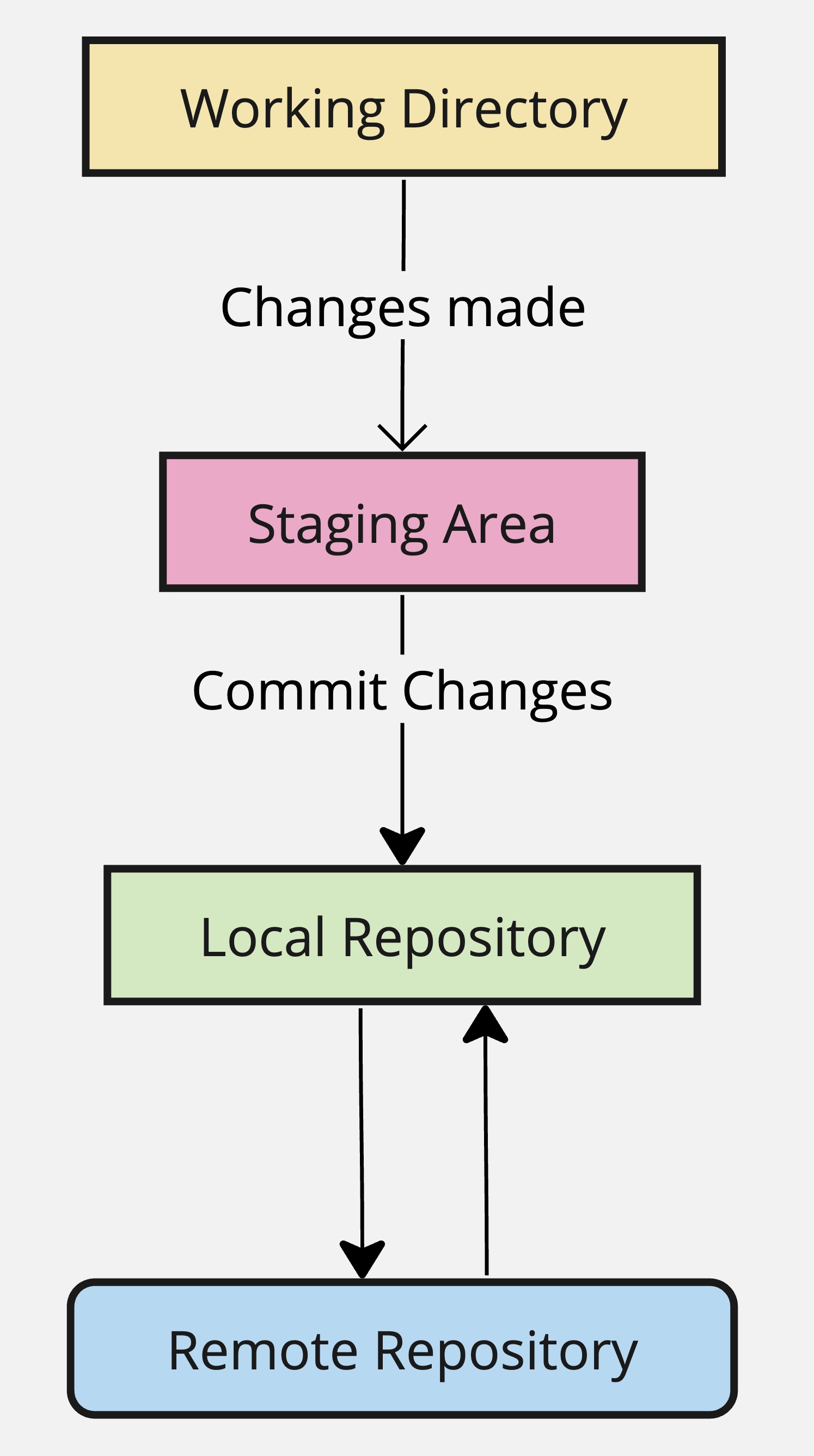
The four places your work lives

  • The working directory holds your files as they are right now
  • The staging area holds the changes you picked out to save next. git add puts them there
  • The local repository is the full history on your machine. git commit adds a snapshot to it
  • The remote repository is that same history on GitHub. git push sends it there
  • git status tells you which of the four your work is sitting in. Run it constantly

Tip

If Git says Please tell me who you are on your first commit, you never introduced yourself:

git config --global user.name "Your Name"
git config --global user.email "you@emory.edu"

Main commands

Command What it does
git init Start a repository here
git clone url Copy a repository from GitHub
git status Where is everything?
git add . Stage everything
git commit -m "msg" Save a snapshot
git log --oneline The history, one line each
git push Send commits to GitHub
git pull Bring other people’s commits back

Source: Lodato (2010)

  • .gitignore lists what Git should never track: by name (secrets.txt), by pattern (*.csv), or by folder (data/)
  • Use it for anything large, private, or regenerated
Seeing changes and fixing mistakes

  • git diff shows what you changed but have not yet staged
  • git diff --staged shows what is staged and about to be committed
  • In the output, a/ is the old version and b/ the new one, + is an added line and - a deleted one

Warning

After git add, plain git diff goes empty. Nothing was lost. The change moved to the staging area, so git diff --staged is the one that shows it

Wrong commit message

git commit --amend -m "The message I meant"

Forgot to include a file

git add the-forgotten-file
git commit --amend --no-edit

Undo the last commit, keep the work

git reset --soft HEAD~1
  • --soft keeps your changes staged, --hard deletes them
  • Only amend commits you have not pushed

Try it yourself!

Four steps, four minutes, inside ~/ds350-review/project

  1. Turn this directory into a repository

  2. Create a .gitignore containing one line, backup/

  3. Stage everything, and commit it with the message Initial commit

  4. Show your history in compact form

Run git status after every step and watch what changes. That habit is worth more than any command on this slide


Round 5: GitHub

Branches, merging, and conflicts

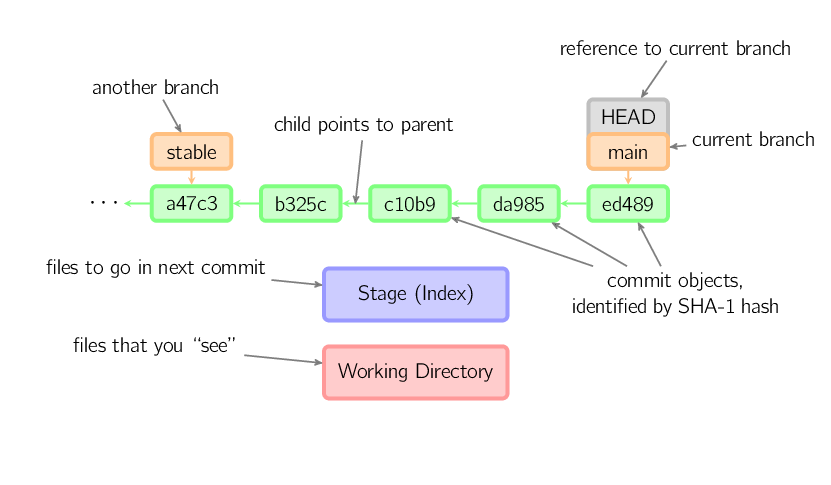
  • A branch lets you work on something without touching main
git switch -c feature-x     # Git 2.23 and later
git checkout -b feature-x   # the older way, same result
git switch main
git merge feature-x
git branch -d feature-x
  • git branch lists your branches and marks where you are. Check it if you are unsure whether yours is called main or master. Both work exactly the same way
  • A file committed on a branch disappears when you switch away. It has not been deleted. You moved to a version of the project where it was never created
  • Two people change different lines, and Git merges them for you. The same line, and it asks you to choose
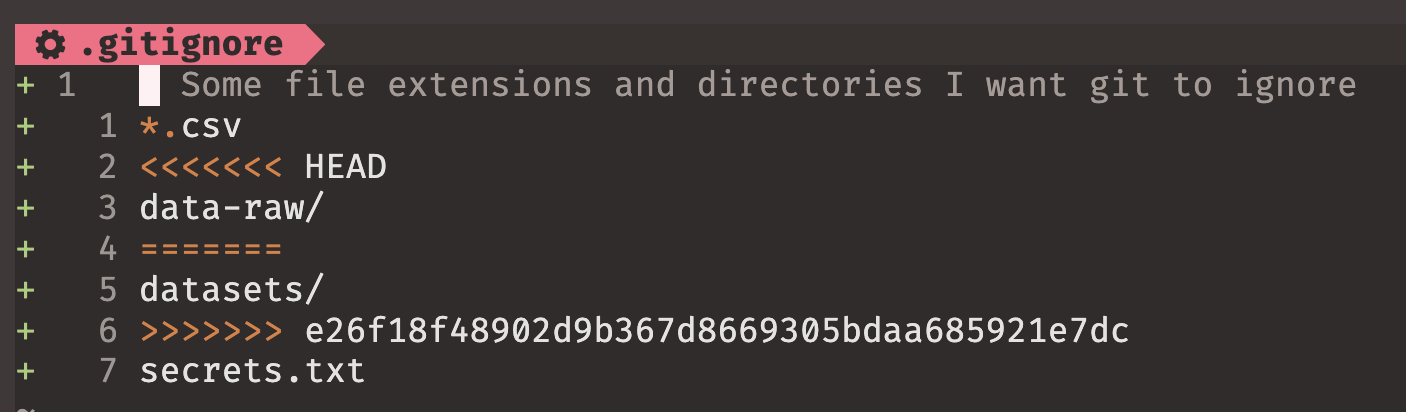
  • A merge conflict is marked with three lines: <<<<<<< opens your version, ======= separates, >>>>>>> closes theirs
  • Delete the markers along with the text you do not want, then git add and git commit

Revision: remotes, clone, and fork

  • A remote is a copy of your repository somewhere else, and origin is the usual name for it
  • git push sends your commits up, git pull brings other people’s down
  • git pull is git fetch (download) plus git merge (combine)
  • git remote -v shows which remote you are actually pushing to. Check this when a push is rejected

Warning

Committing is not publishing. If you commit and never push, GitHub shows nothing and your work looks missing

  • Clone copies a repository to your computer. It stays connected to the original, and if the original is not yours, you cannot push to it
  • Fork copies a repository to your GitHub account. Because that copy is yours, you can push to it
  • Forking is a GitHub feature, not a Git one, which is why there is no git fork command

fork first, then clone your fork

  • Clone mine instead, and your first git push is rejected. That is the most common way to lose time in the quiz

Try it yourself!

Four steps, four minutes, inside ~/ds350-review/project

  1. Create a branch called feature-readme and switch to it

  2. Create README.md containing # Review project, and commit it

  3. Switch back to your default branch. README.md is gone

  4. Merge feature-readme, and README.md comes back

Recording your commands

The quiz asks for a commands.txt holding every command you ran. An empty one costs marks, and reconstructing it from memory at 6:40 pm never goes well

The reliable way

  • Keep the file open in VS Code and paste each command as you go
  • It takes two seconds per command and it is always right

The quick way

history | tail -n 60 > commands.txt
cat commands.txt
  • history prints the commands you have run, most recent last
  • tail -n 60 keeps the last sixty of them
  • Always cat the file before you push. An empty commands.txt is the single most common way to lose marks on this quiz

Tip

history only remembers the terminal session you are in. Close the window mid-quiz and you lose it, which is why pasting as you go is safer

Round 6: ready for the quiz

What actually goes wrong

Every one of these has cost somebody marks before, and none of them is about knowing Git:

  • Cloning my repository instead of forking it first, so git push is rejected
  • Committing everything and never pushing, so GitHub shows an empty repository
  • Running git init inside a repository that was already cloned, or in your home directory
  • Merging into the wrong branch, or never merging at all
  • Submitting the link to my repository rather than to your own fork
  • Leaving commands.txt empty, or forgetting to create it
  • Working for an hour in the wrong directory

The fix for almost all of them is the same: run git status and pwd often

Your checklist for the quiz

Before you arrive

  • git --version runs, and git config --list shows your name and email
  • You can sign in to GitHub, and you know your username
  • You have pushed to a repository at least once from this laptop
  • Laptop charged, charger in your bag

On the day

  • Read the whole task list before you type anything
  • Fork first, clone second, pwd third
  • Record your commands as you go
  • Push, then open your fork in the browser and check that it is really there
  • Submit the link to your fork on Canvas

Open notes, open slides, open web, AI allowed. Say which AI you used

Clean up

cd ~
pwd     # check you are where you think you are
ls      # you should see ds350-review here
rm -rf ds350-review

Warning

rm -rf deletes everything at once, with no Trash and no undo. Read the path before you press Enter

  • This is the one command in the course that can genuinely ruin your day
  • The safety habit: pwd and ls first, so you can see what you are about to remove
  • Nothing outside this folder is affected, and nothing on GitHub changes
  • Your project/ repository is gone, and that is fine. You built it in ten minutes and you could build it again

Questions?

See you soon!

Appendix: solutions

Solution 1

How computers store things

  1. 12 is 1100, because \(8 + 4 = 12\). That takes four bits

  2. D is 68. ASCII is an ordered lookup table, so A is 65, B is 66, C is 67, D is 68

  3. C++ is compiled, translated into machine code before it runs. Python is interpreted, translated as it runs. The compiled program starts and runs faster, and the interpreted one is quicker to write and runs anywhere the interpreter does


Solution 2

The shell

echo $SHELL    # 1. which shell you are running

ls -lah ~      # 2. long format, all files, human-readable sizes
  1. Only /Users/danilo/work is absolute. The other two are relative, because they start from wherever you happen to be

A path like ~/Documents is the interesting case. The shell expands ~ into your home directory before the command ever sees it, so it behaves like an absolute path even though it does not begin with /

Solution 3

Files and wildcards

mkdir -p project/{data,scripts,docs}
touch project/data/data0{1..5}.csv
touch project/scripts/{clean,analyse,plot}.py
mkdir project/backup && cp project/scripts/*.py project/backup/
mv project/data/data01.csv project/data/input.csv
ls -R project
  • Task 4 needs both ideas at once: * picks out the Python files, and && runs the copy only if the directory was created

  • If project/backup already exists, mkdir fails, && stops, and the copy never happens. That is exactly what && is for

  • tree project shows the same structure more clearly, if you have it installed

  • Back to the exercise

Solution 4

Text tools

echo "brazil" > project/docs/countries.txt    # 1. > creates the file

echo "india" >> project/docs/countries.txt    # 2. >> adds to what is there

grep "in" project/docs/countries.txt | wc -l  # 3. one
  • Task 2 is the whole point. Use > there instead of >> and you end up with a single line, india. brazil is gone, with no warning

  • The count is 1 because india contains in and brazil does not. grep filtered, and wc -l counted what survived

  • Task 3 also works without a pipe: grep -c "in" project/docs/countries.txt

  • Worth trying later: cat prints the file, wc -l counts its lines, and grep -n "in" adds the line number

  • Back to the exercise

Solution 5

Git on your machine

git init                                      # 1. Git calls your files "untracked"

echo "backup/" > .gitignore                   # 2. backup/ leaves the untracked list

git add . && git commit -m "Initial commit"   # 3.

git log --oneline                             # 4. one commit
  • Empty directories never appear in git status. Git tracks files, not folders

Two more worth trying at home, both on the revision slide:

echo "# clean the raw data" >> scripts/clean.py
git diff              # your change, not yet staged
git add scripts/clean.py
git diff              # empty! the change moved to the staging area
git diff --staged     # this is the one that shows it now

git commit -m "add coment"                       # a bad message...
git commit --amend -m "Add comment to clean.py"  # ...fixed, with no second commit

Solution 6

Branches

git switch -c feature-readme        # 1. or: git checkout -b feature-readme

echo "# Review project" > README.md               # 2.
git add README.md && git commit -m "Add README"

git switch main                     # 3. use master if that is what git branch showed
ls                                  # README.md is not here

git merge feature-readme            # 4.
ls                                  # and now it is back
  • In step 3, README.md has not been deleted. You moved to a version of the project in which it was never created, and merging brings it back

  • git branch lists your branches and marks where you are with an asterisk

  • Once you have finished with a branch, git branch -d feature-readme deletes it

  • Back to the exercise