DATASCI 350 - Data Science Computing
Lecture 03: Command Line Interface
Brief recap of last class
Early computing and data representation
- Computers went from people to mechanical calculators to silicon chips
- The Von Neumann architecture keeps instructions and data in one memory
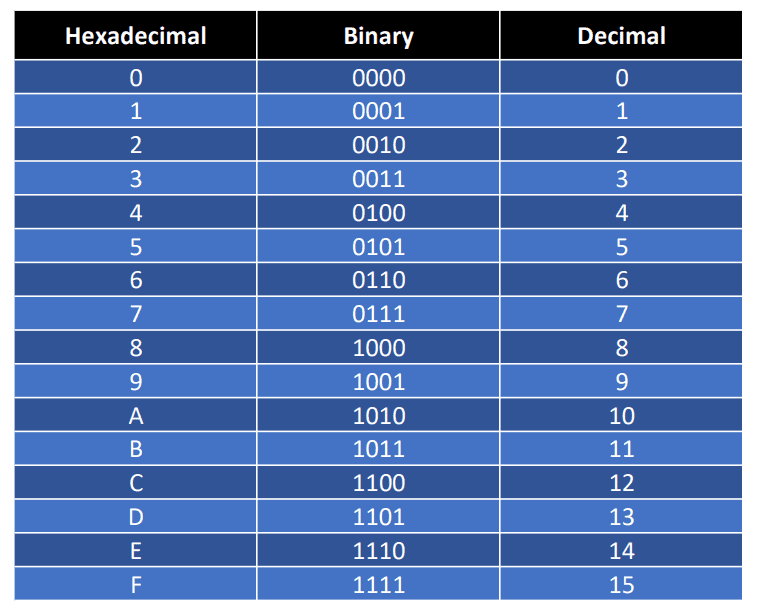
- Everything is stored in binary, base 2, using only 0s and 1s
- One digit is a bit. Eight bits are a byte
- Hexadecimal is base 16, and one hex digit covers exactly four bits
- Abstraction is what lets numbers stand for images and text
Brief recap of last class
Representing images, colours and text
- An image is a grid of pixels
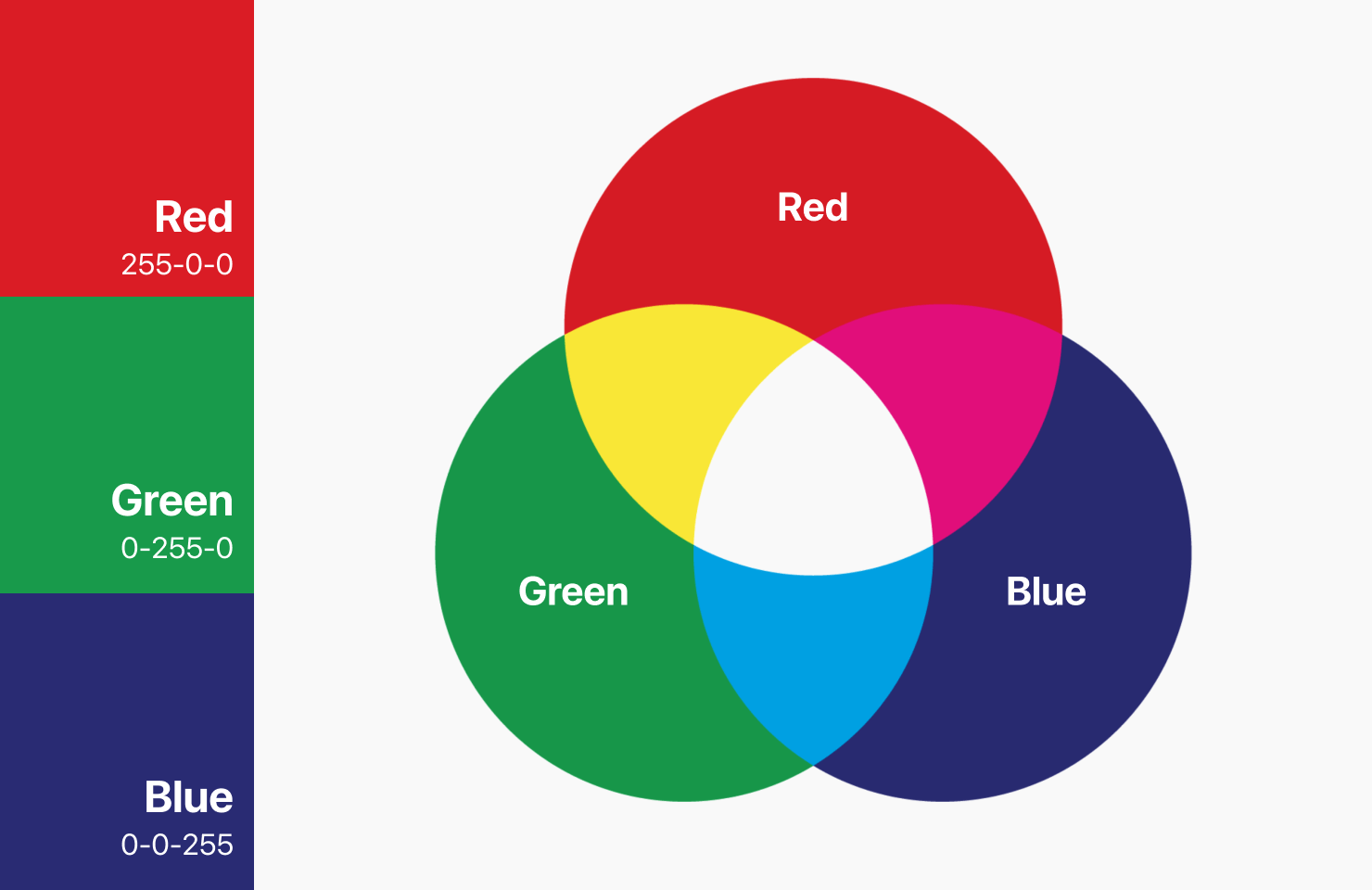
- RGB gives each pixel three numbers from 0 to 255: red, green, and blue
- That is 8 bits per channel, so 16.7 million colours
- Text is split into characters, and each character gets a number
- ASCII is a lookup table for 128 characters
- Unicode extends it to accents, other alphabets, and emoji
Brief recap of last class
Programming languages
- Konrad Zuse built the first programmable computers in the 1940s
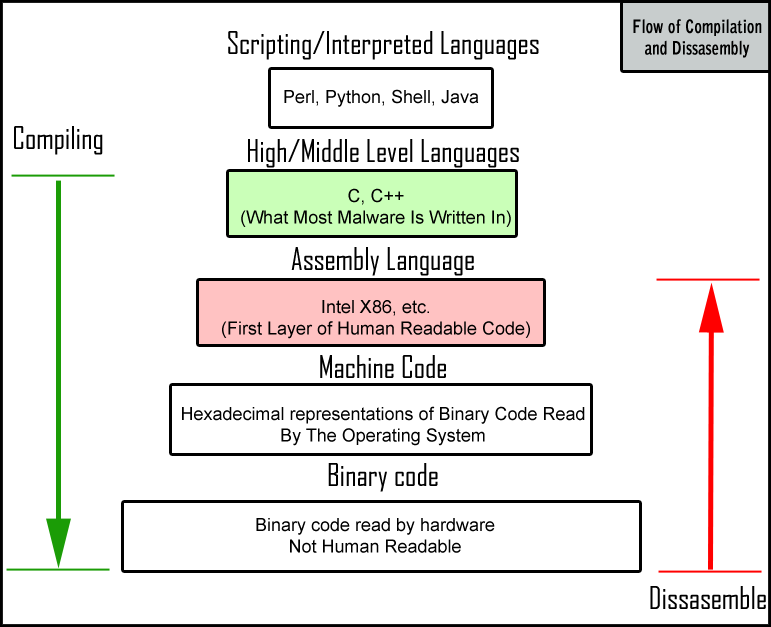
- Assembly gives machine code readable names, one line per instruction
- Low-level languages are fast, but hard to read and write
- High-level languages like Python hide the hardware and run anywhere
- Compiled languages translate first. Interpreted ones translate as they run
Today’s lecture
Command line: the old-school way of interacting with computers
- The command line is a text interface to your computer
- We will navigate the file system, and create, move, and delete files
- We will write shell scripts to automate work you would rather not repeat
- It is still everywhere: remote servers, cloud computing, and automation
- Let’s get started! 🤓
Tweet of the day
A computer in a nutshell
Operating system
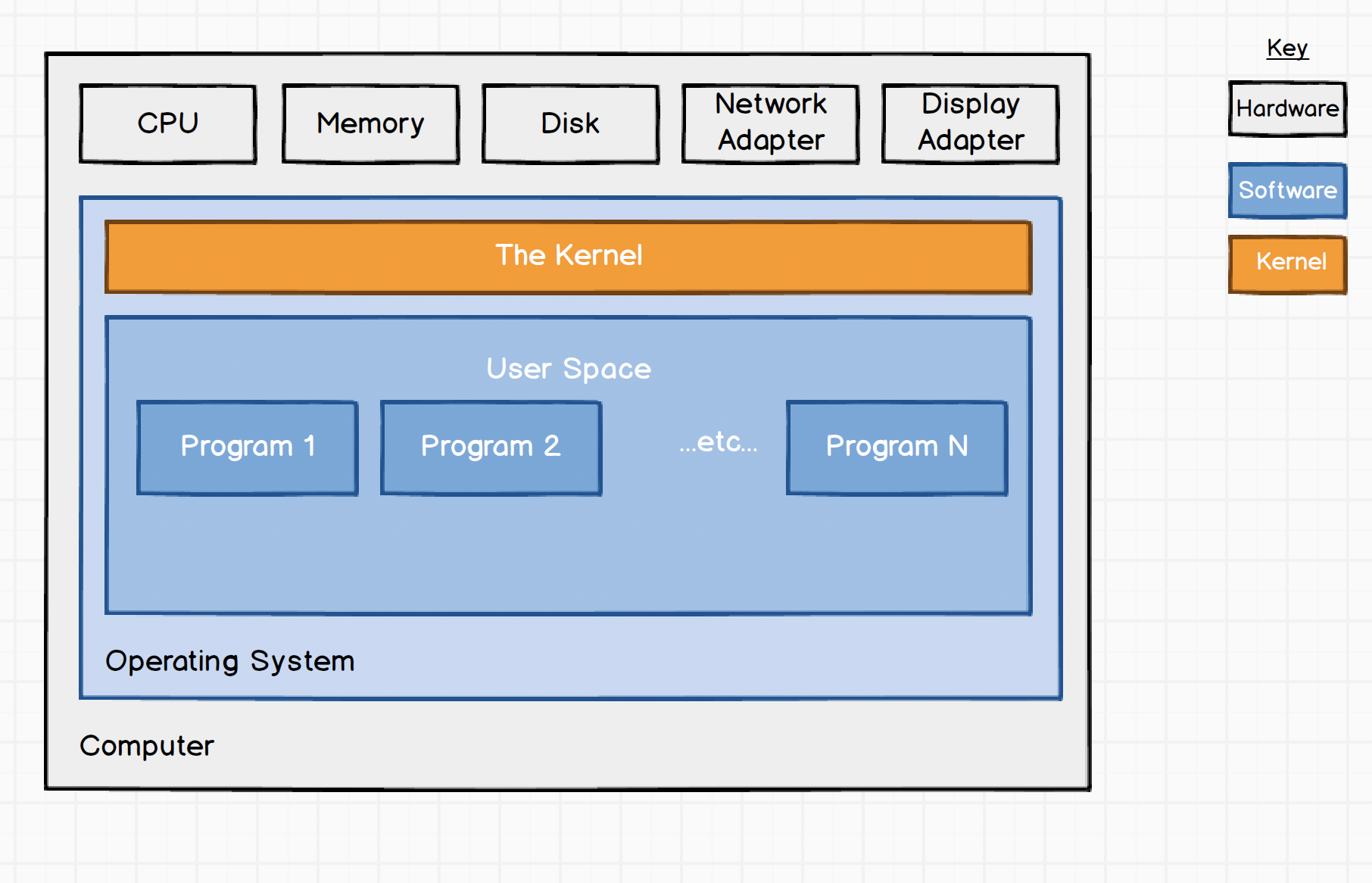
- The operating system sits between your programs and the hardware, and manages access to it
- It has two halves: the kernel and user space
- The kernel talks to the hardware, runs the drivers, and hands out memory and CPU time
- Code running in the kernel can break everything, which is why users are kept out of it
- User space is where your programs run, each in its own sandbox, asking the kernel for whatever it needs
- Curiosity: the Linux kernel source is on GitHub
A computer in a nutshell
Kernels and shells
- A shell is a user space program that lets you reach the system’s resources
- Use it interactively by typing at a terminal, or run a script, a file full of commands
- Most people use a graphical interface instead. Same idea, prettier surface
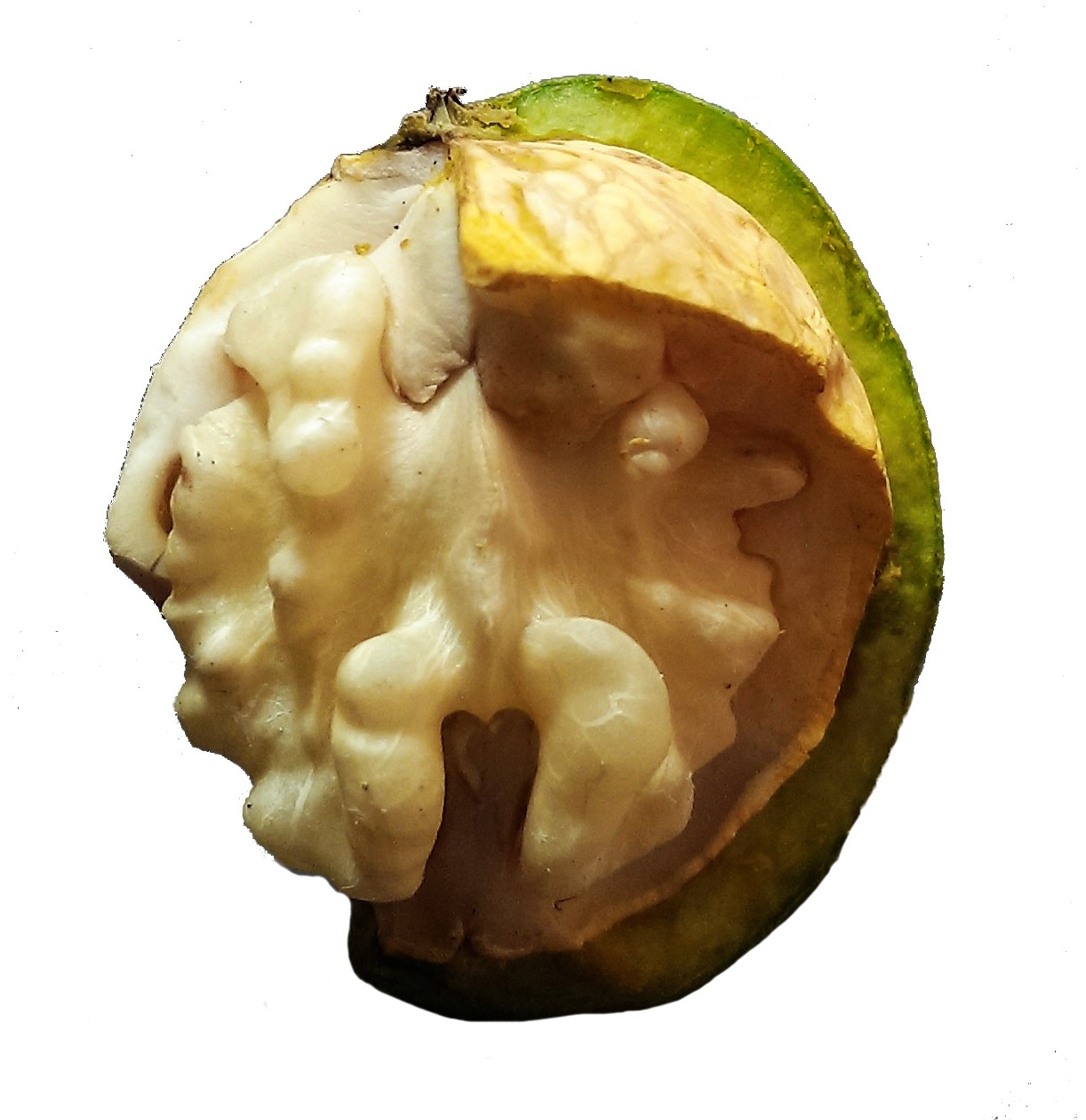
- Why “kernel” and “shell”? A nut has a soft kernel protected by a hard shell. Useful metaphor, innit?
Interacting with the shell
Terminals
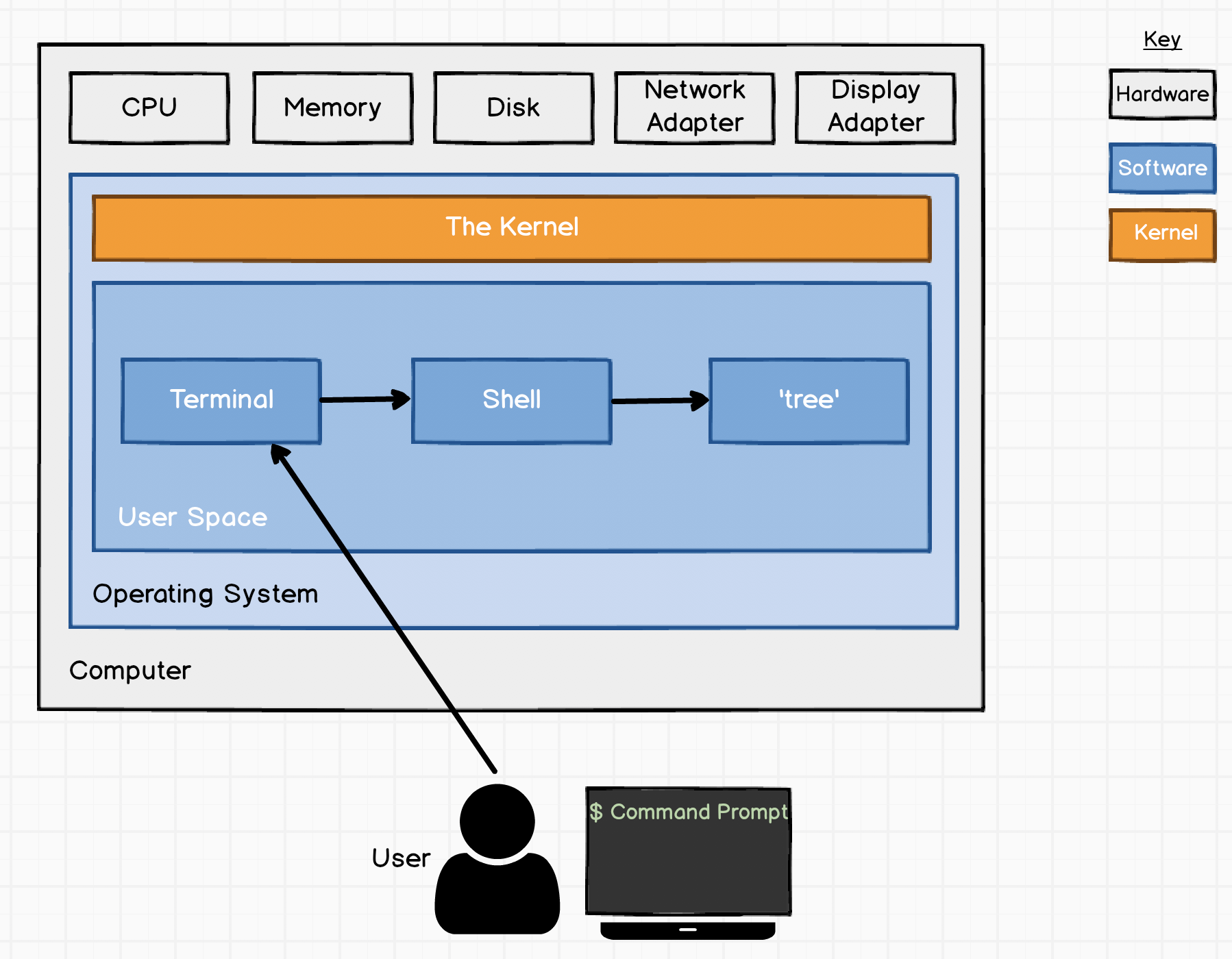
- You never talk to the shell directly. You talk to a terminal
- A terminal reads your keystrokes, passes them to a program, and shows the results
- To use a shell interactively, you need a terminal
- Why “terminal”? Before screens, a terminal was hardware: a keyboard wired to a mainframe, often many terminals to one machine
- Working on a data centre or cloud machine today is much the same, with a nicer screen 😉
Interacting with the shell
Command line
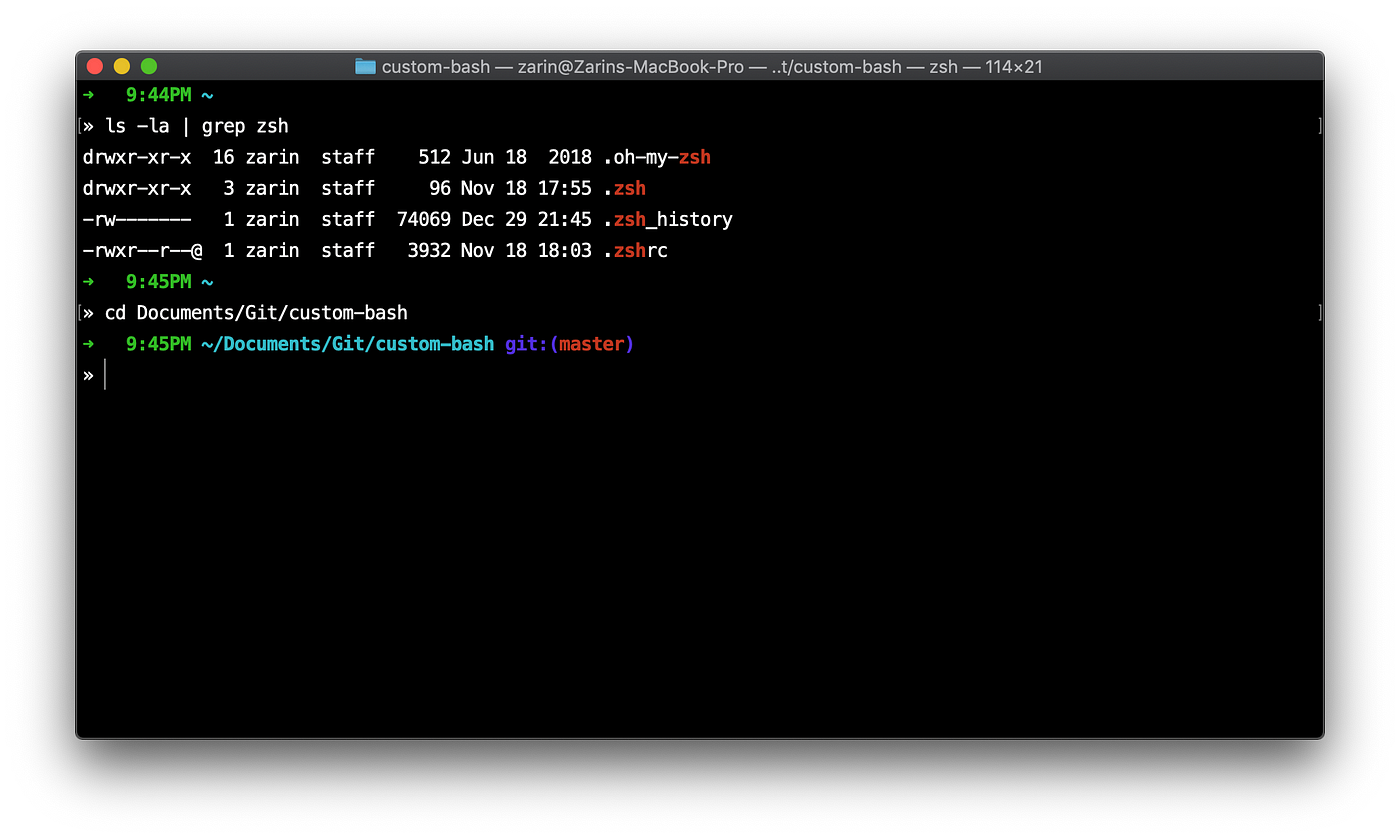
- A terminal is simply a text-based interface. The first thing it does is start a shell
- The shell takes input two ways: interactively from the command line, or from a script
- It sends output back to the terminal, or to a file
- The command line is the line you type on. You can customise it with colours and shortcuts
Shell variants
Bash, Zsh, and others
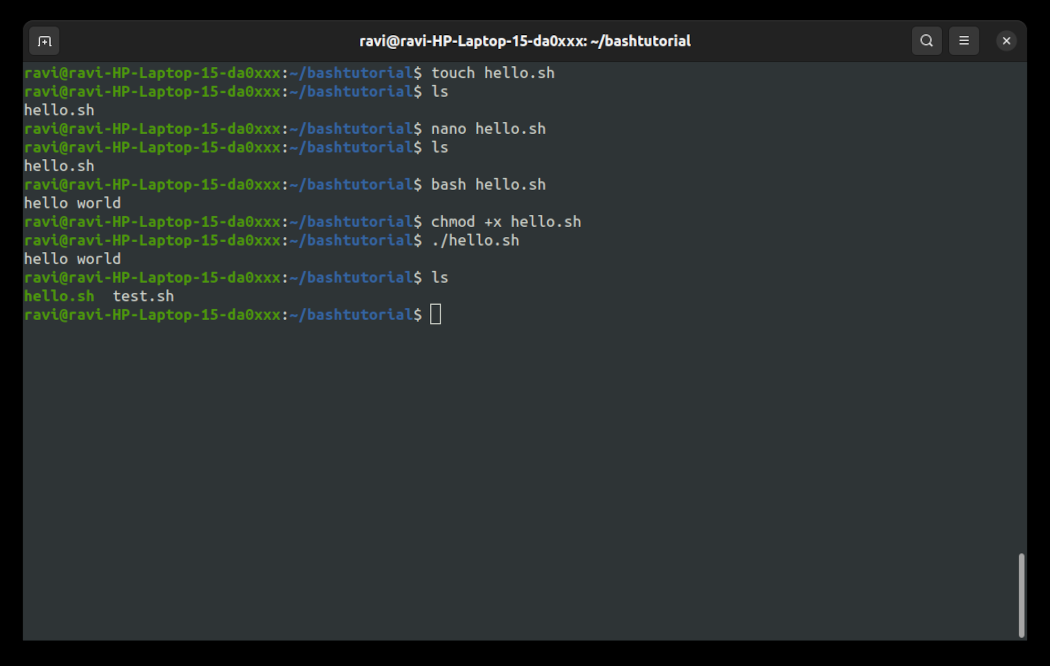
- There are many shells, and they differ in what they can do
- bash is the default on most Unix-like systems. The name stands for Bourne-Again Shell
- zsh is the default on macOS
- Windows has cmd.exe and PowerShell. There is also C Shell, and many more
- Your terminal starts your preferred shell automatically, and you can change which one
Why bother with the shell?
Why should you use this…
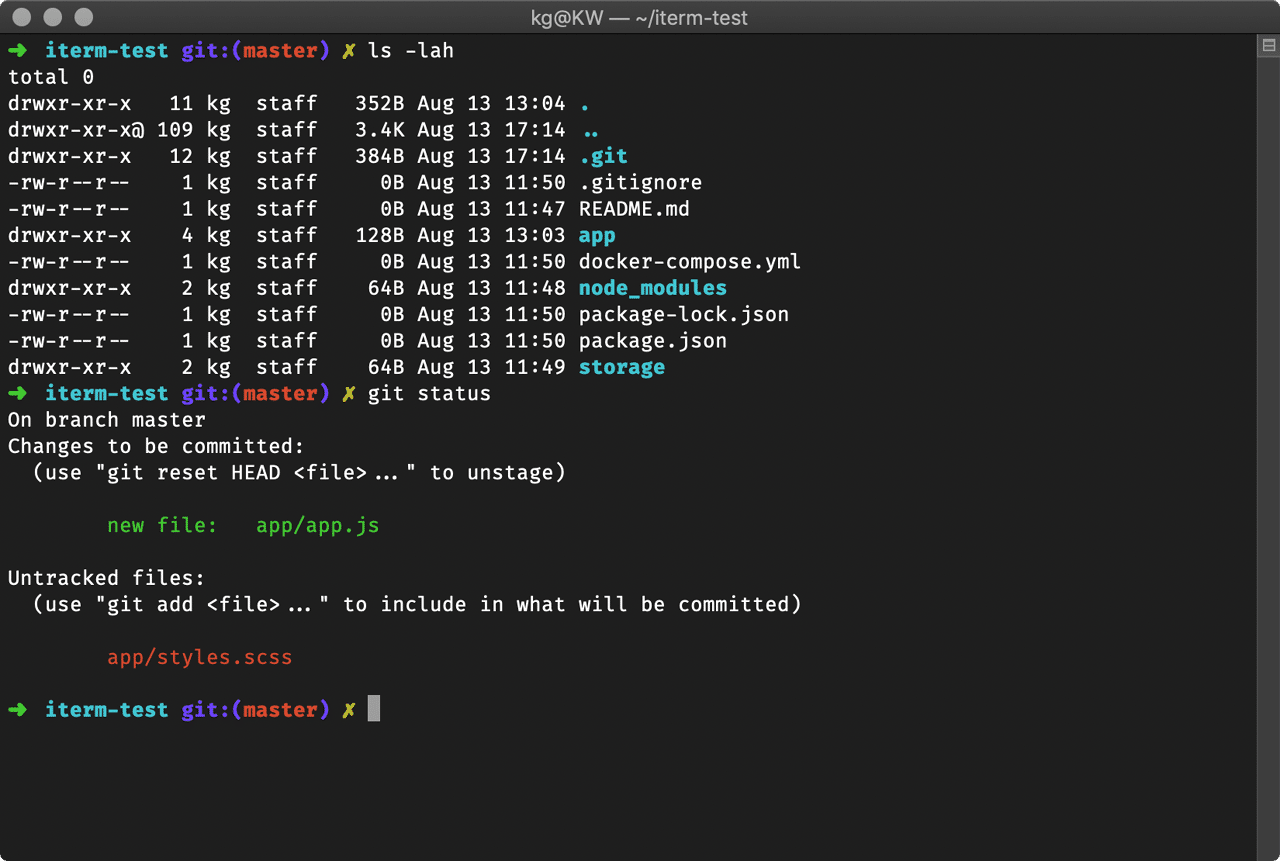
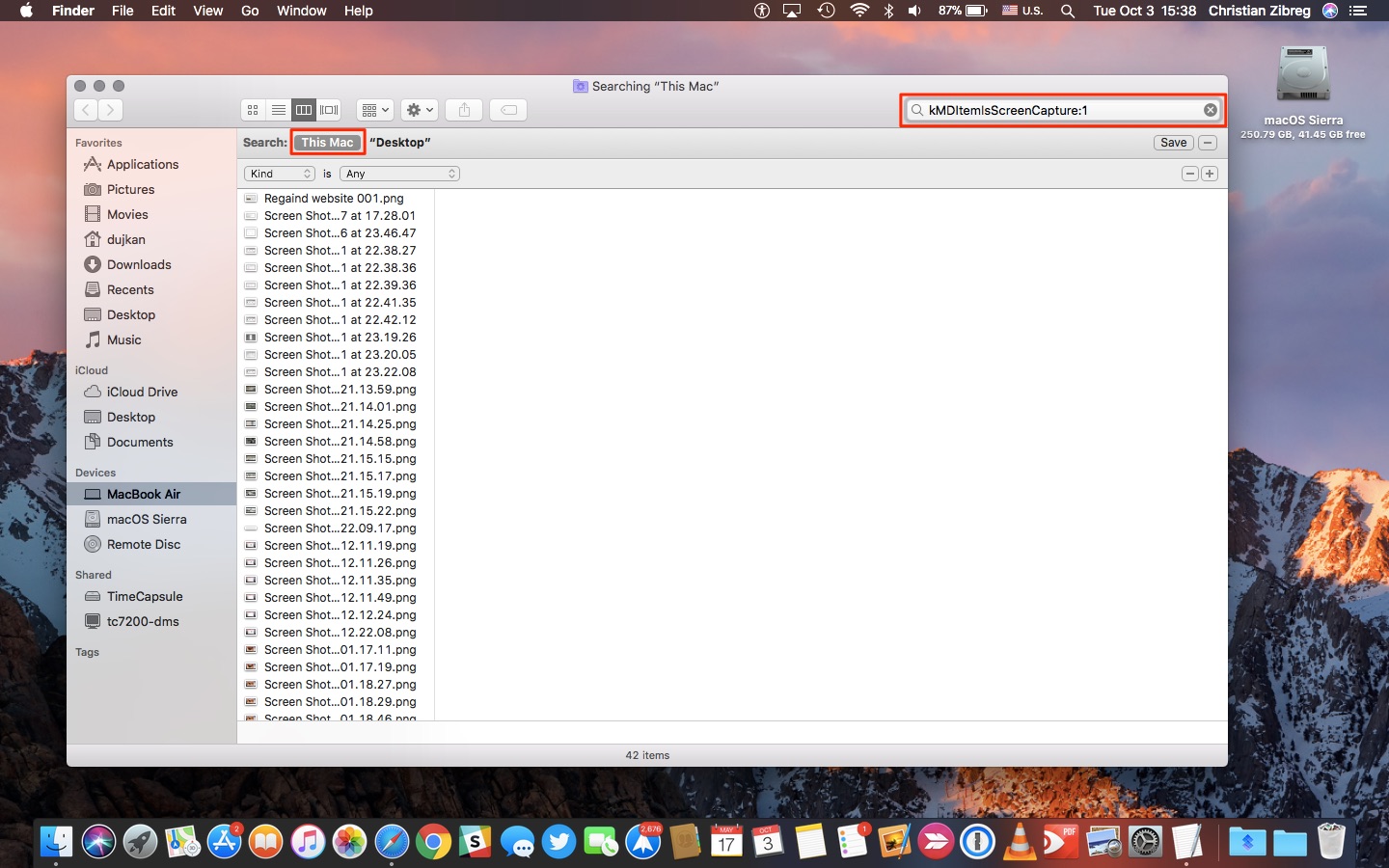
… instead of this?
The Unix philosophy
- Our tools come from Unix, built at Bell Labs from 1969
- They still follow the Unix philosophy:
Do One Thing And Do It Well
- Each tool is small and does a single job
- Chain the small tools together and you can build something large
- Hence the description: minimalist and modular
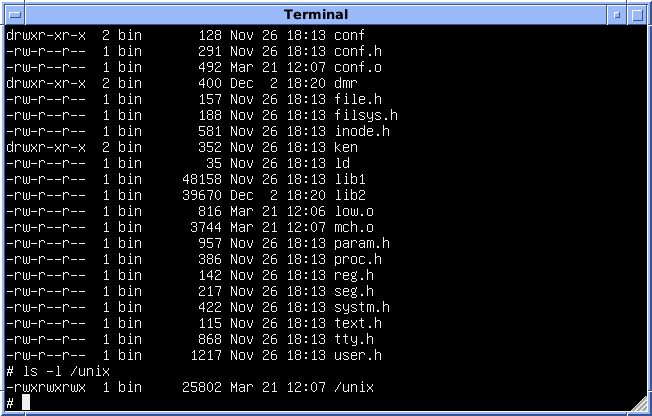
ken and dmr belong to Ken Thompson and Dennis RitchieMultiple ways to get help
man lsopens the manual page forls. Pressqto quitManual pages come in numbered sections. Run
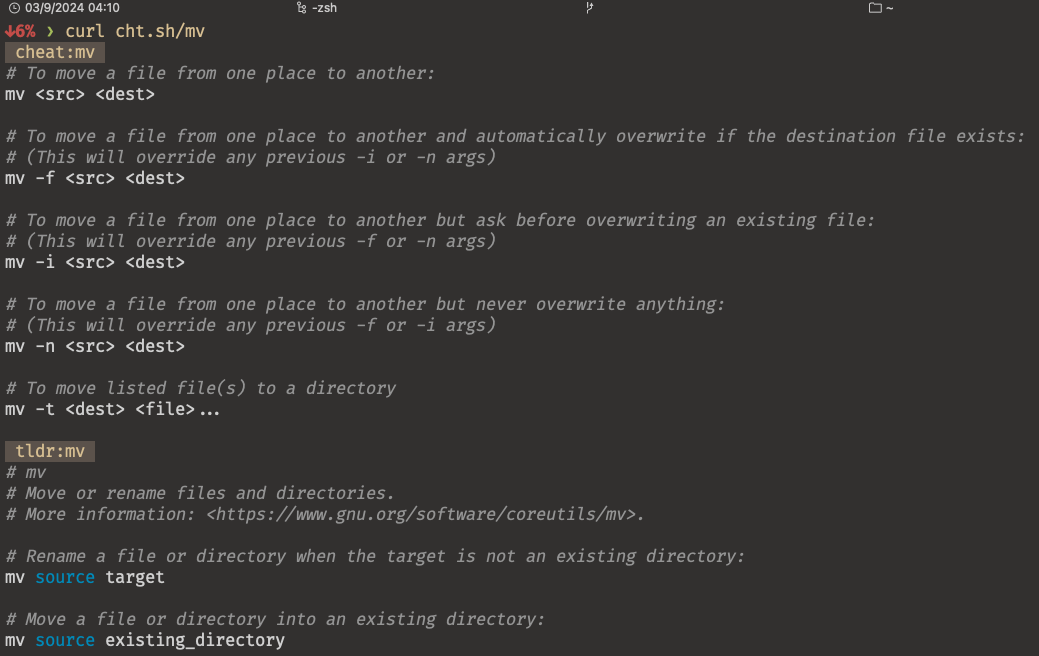
man manto see themcht.shgives short, practical answers straight in the terminal (you may need to installcurlfirst):
- Or you can use an LLM (or Google) to search for help on a command
- There’s a great chance that someone else has already asked the same question you have 😉
Multiple ways to get help
- You can also install the
tldrtool (GitHub repository) which provides simplified help pages for common commands. Run it like this:tldr command
$ tldr ls

Successfully updated local database

ls

List directory contents.
More information: <https://www.gnu.org/software/coreutils/manual/html_node/ls-invocation.html>.

- List files one per line:
    ls -1

- List all files, including hidden files:
    ls [-a|--all]

- List files with a trailing symbol to indicate file type (directory/, symbolic_link@, executable*, ...):
    ls [-F|--classify]

...
- For more info on how to get help, see here
Getting help with man
man shows the page in a pager, a small viewer for long text. The keys you need:
jandk, or the arrow keys, move one linedandumove half a page,spaceandba whole onegandGjump to the very start and the very end/patternsearches forwards,?patternbackwards. ThennandNfor the next and previous hitqquitshlists every other key
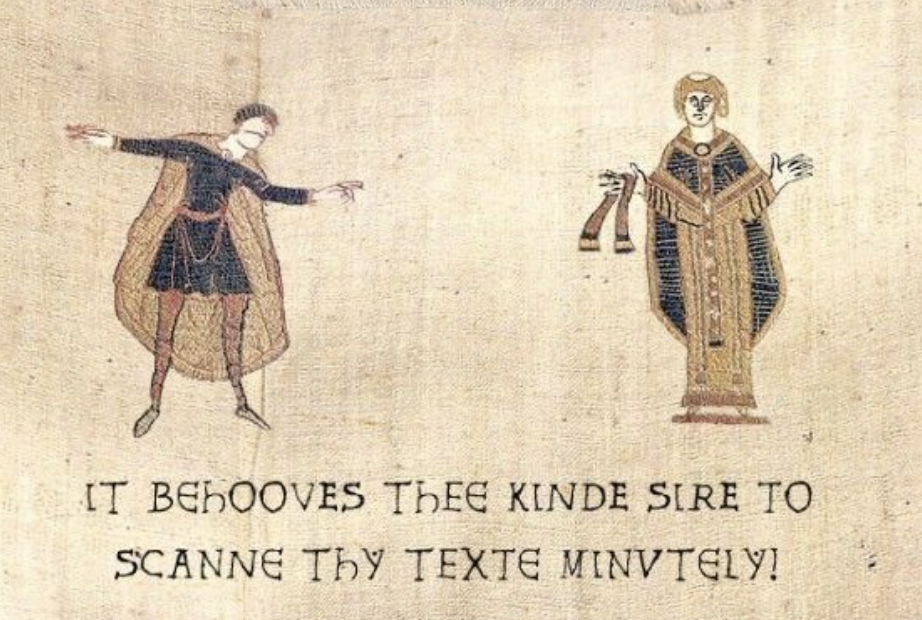 RTFM! 😂
Always check the documentation!
Navigating your file system
- Phones and tablets hide the file system from you completely
- In data science you need to find your way around it quickly
- The questions that keep coming up:
- Where am I right now?
- Where is my home directory?
- Where are my files, and where do I want to put them?
- How do I get from here to there?

Navigation
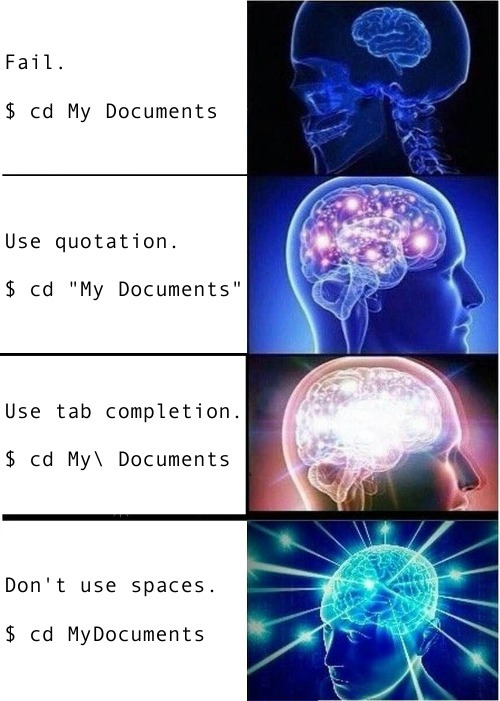
Beware of spaces in names. Say you have a folder called “My Documents” (I’m looking at you, Windows)
cd My Documentsfails. Bash readsMyandDocumentsas two separate arguments- Two ways around it:
- Quote the name:
cd "My Documents" - Escape the space:
cd My\ Documents. Tab completion does this for you
- Quote the name:
- Better still: never put spaces in names
- Use lowercase with dashes or underscores, like
assignment-05orassignment_05
Next class
- Managing files: create, copy, move, and delete them from the terminal
- Wildcards and
find, so you can act on many files at once - Working with text:
cat,head,grep, andsed - Pipes and redirects, chaining small tools into bigger ones. The Unix philosophy in action
- Loops and shell scripts, to automate what you would otherwise repeat
- Bring your laptop. We will be typing 🤓